
You know that moment when your patience is hanging by a thread ? You’re sitting literally right next to the WiFi router wondering "Why Is My WiFi Slow on Laptop But Fine on Phone ? Your phone is perfectly fine. Instagram loads instantly. YouTube videos play in HD without a single pause. TikTok? Smooth.
Then you open your laptop.And suddenly the internet acts like it moved to another planet. One tab takes forever to load. Emails won’t refresh. Videos buffer every few seconds like it’s 2009 again. You refresh the page once. Twice.
Maybe six times if you’re feeling optimistic.Now you’re annoyed.Your first thought?“Great. The WiFi is broken.”Then maybe:“The internet company is trash.”Or:“My laptop is officially done for.”I’ve been there.
Honestly, it feels weirdly personal when your laptop decides today is the day it no longer believes in speed.But here’s the interesting part: if your phone is working perfectly fine while your laptop is struggling, your WiFi usually isn’t the actual problem.
That tiny detail matters.Because when one device works and another doesn’t, it usually means something specific is happening on the laptop side — and most of the time, the fix is surprisingly simple. Not always obvious.
The problem is fixable.Sometimes it’s a setting quietly working against you. Sometimes your laptop is connected to the wrong WiFi band and doesn’t even know it.
Sometimes a sneaky background app is eating your internet while pretending to be innocent and sometimes? Your laptop just needs one tiny adjustment that takes two minutes.
Before you start blaming your router, threatening your internet provider, or emotionally preparing to buy a whole new laptop, let’s slow down and figure out what’s actually going on. Because chances are, your WiFi isn’t broken. Your laptop is just being dramatic.
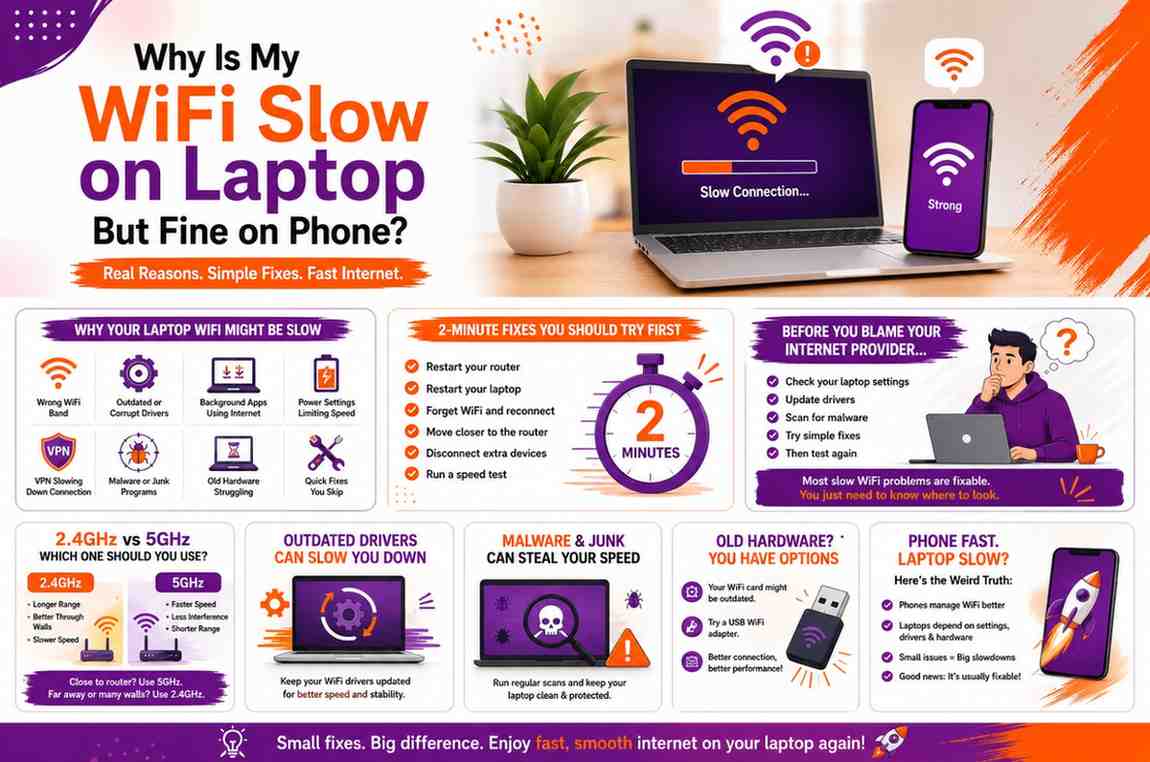
First: Is Your Laptop Actually the Problem?
Before touching random settings or restarting the router seventeen times, let’s figure something out first.
Is your laptop actually the problem?I know that sounds obvious, but this tiny step saves people a ridiculous amount of frustration.Because when WiFi suddenly acts weird, most of us panic and immediately blame the internet itself.
Meanwhile, the real issue is sitting quietly inside the laptop like:“Actually… this one might be on me.”So before trying random internet hacks from old forums written in 2013, do a quick little reality check.
1. Is the problem happening everywhere — or just in one browser ?
This one surprised me the first time.Sometimes your WiFi isn’t slow.Your browser is. Seriously, open another browser for two minutes and test it.
If Chrome feels painfully slow, try Edge or Firefox. Open YouTube. Search something random. Load a few pages.If suddenly everything works fine ?
Congratulations. Your WiFi was innocent the whole time.Sometimes browsers become messy. Too many extensions, overloaded cache, weird updates — and suddenly your laptop feels like it forgot how the internet works.
2. Did the slow WiFi start suddenly ?
Ask yourself honestly: Was your laptop working perfectly fine a few days ago?And then one random morning… boom.Everything got weird.
Because sudden slowdowns usually tell a story.Maybe your laptop updated overnight.Maybe a setting quietly changed.Maybe something started downloading in the background without asking for permission like an uninvited guest.
Sudden problems are usually easier to fix because something specific triggered them.If your laptop has always had weak WiFi, that points toward a different kind of issue.
3. Is it only slow in one room ?
This one tricks people all the time. You’re in your bedroom struggling to load one webpage. Then somehow the kitchen WiFi works perfectly. What happened ? Walls happened.Doors happened. Distance happened. WiFi signals are weird.
They don’t travel through every room equally. Mirrors, thick walls, furniture, even where you place your laptop can quietly mess things up and laptops sometimes struggle more than phones.You know what’s funny ?
Your phone can be happily watching videos while your laptop beside it acts like it’s surviving on one WiFi bar from another universe.It makes no sense until you realize devices don’t always receive signal strength the same way.
4. Did this start after a Windows update ?
I’m not saying Windows updates are villains.But…Sometimes they absolutely behave like one.A lot of people notice weird internet issues right after an update. Drivers change. Network settings reset.
Small things shift behind the scenes and suddenly your laptop WiFi becomes slower than your patience.If you remember updating recently, keep that in the back of your mind.It might matter more than you think.
Here’s the thing most people don’t realize: Phones and laptops don’t use WiFi in exactly the same way.Your phone is built to constantly jump between signals, optimize connections, and stay online smoothly. It’s designed for movement.
Laptops ? Not always. They rely more heavily on drivers, network settings, power modes, hardware, and sometimes old WiFi cards that have quietly aged without telling anybody.
So if your phone works perfectly while your laptop struggles, don’t automatically assume your internet is broken.Sometimes your laptop is just asking for attention in the most inconvenient way possible
Your Laptop Might Be Connected to the Wrong WiFi Band
Okay, this might sound a little technical at first.But stick with me, because this small detail fixes slow laptop WiFi more often than most people realize.
Sometimes the issue isn’t your internet speed at all.Sometimes your laptop is simply connected to the wrong WiFi band.Yes — your WiFi actually has different versions.
Most modern routers split WiFi into two bands:
2.4GHz and 5GHz.
Don’t worry — you don’t need to remember the technical names. Just know that they work differently.Think of them like two different roads.One road is slower but reaches farther.The other is much faster but works best at shorter distances.That’s really the main difference.
The Slow-but-Reliable Option: 2.4GHz
Think of this WiFi band as the dependable one.It travels farther.It works better through walls.It reaches bedrooms, upstairs spaces, offices, or corners of the home where signals usually struggle.But there’s a tradeoff.
It’s slower and sometimes more crowded.Many devices use the 2.4GHz band — smart TVs, security systems, older devices, smart home gadgets, and even some household electronics can interfere with it.So if your laptop is connected to 2.4GHz while sitting close to the router, your internet may feel slower than it should.
The Faster Option: 5GHz
This is the speed-focused WiFi band.Faster downloads.Smoother streaming.Less lag during video calls or gaming. And usually less interference from other devices.Sounds perfect, right?Well, there’s one catch:
Distance matters.
If you’re too far from the router — or separated by thick walls — the signal can weaken quickly. You can think of it like this:“I’ll give you great speed… but only if you stay nearby.”That’s where things get interesting.
Your Phone Might Be Handling WiFi Better Than Your Laptop
Have you ever noticed your phone feels fast, but your laptop struggles on the same internet?You’re not imagining it.Many smartphones automatically switch between WiFi bands more intelligently.
They quietly choose whichever connection works best at the moment.Laptops, on the other hand ? Sometimes they stay connected to one band even when a better option is available.In simple terms :Your phone may already be using the faster lane while your laptop is stuck on the slower one.
How To Check Your WiFi Band (Takes About Two Minutes)
If your WiFi network shows two similar names, take a closer look.You might see something like:
HomeWiFi HomeWiFi-5G or MyInternet_2.4G MyInternet_5G
Usually, the network with 5G or 5GHz in the name is the faster option.Here’s what to do:
Click the WiFi icon on your laptop.
Disconnect from your current network.
Connect to the 5GHz network if you’re sitting close to the router
Test your speed — open YouTube, browse websites, or run a quick speed test
You don’t need any special tools.If this was the problem, you’ll often notice the difference pretty quickly.One important thing to remember:If you’re far from the router, upstairs, or behind several walls, 5GHz may actually perform worse.
In that situation, 2.4GHz might work better because it has a stronger range.And this matters more than people think:The fastest option isn’t always the best option.Sometimes a stronger, more stable signal beats higher speed.
What you really want is a connection that works consistently.Not just one that sounds faster on paper and if switching WiFi bands suddenly makes your laptop feel normal again ? Congratulations — you probably fixed a problem that causes people around the world to blame their internet provider for no reason.
For people who want to learn deep this topic, here they can
Your Laptop’s WiFi Driver Might Be Outdated (The Hidden Villain)
Now let’s talk about something most people never think about until their laptop starts acting strange:
WiFi drivers
I know.The word driver instantly sounds boring and technical.But stay with me, because this tiny thing quietly causes way more slow internet problems than people realize and the annoying part? Most people don’t even know it exists.
So… What Even Is a WiFi Driver ?
Let’s make this painfully simple.Your WiFi driver is basically a translator. That’s it.It helps your laptop communicate with your WiFi hardware.
Your router sends signals.Your laptop receives them.And the driver sits in the middle making sure everyone understands each other.When everything works, you never think about it.
But when the driver becomes outdated, corrupted, or confused after an update? Things get weird.Suddenly your internet feels slow. Pages stop loading properly.Video calls freeze.Downloads crawl. And somehow your phone beside you is working perfectly fine, making the whole situation even more confusing.
Why Old Drivers Quietly Ruin WiFi Speed
This part surprised me when I first learned it.Drivers don’t always fail dramatically.Sometimes they fail quietly.Your laptop still connects to WiFi.Nothing looks obviously broken.You still have signal bars.
But the speed ? Terrible and because the laptop technically still works, people usually blame the internet provider, the router, or “bad WiFi” instead.Meanwhile, the actual problem is sitting quietly in the background.
It’s like having someone give directions using an old map.Technically, you’ll still get somewhere.Just… not very smoothly.
Sometimes Updates Accidentally Break Things
Here’s something nobody warns you about:Sometimes your laptop becomes slower right after an update.Especially with Windows.You install an update thinking life will improve.
Then suddenly websites take forever to load.YouTube buffers.Meetings lag.Everything feels off.Why? Because updates occasionally mess with network settings or replace drivers with versions your laptop doesn’t love.
Not always but often enough that it’s worth checking.If your WiFi slowdown started randomly after a system update, this section deserves your attention.
Here’s How To Check Your WiFi Driver (Don’t Worry — It’s Easy)
This sounds scarier than it actually is.You’re basically clicking a few buttons.That’s it.Here’s the simple version:
Search Device Manager on your laptop and open it
Find Network Adapters and click the little arrow
Look for your WiFi adapter (it may say Intel, Realtek, Qualcomm, or Wireless Adapter)
Right-click it
Click Update Driver
Choose Search automatically for drivers
Then let your laptop do its thing. Microsoft WiFi Driver Help
Sometimes it finds an update.Sometimes it says everything is current.Either way, you checked one of the biggest hidden causes of mysterious slow WiFi.And honestly?
This fixes more weird “my laptop WiFi is slow but my phone is fine” situations than people expect.It’s one of those quiet little fixes nobody talks about — until it suddenly makes your laptop feel normal again. And when that happens ? You’ll wonder why nobody told you to check this sooner.
Too Many Apps Are Secretly Eating Your Internet
Okay.This one frustrates people when they discover it.Because sometimes your WiFi isn’t slow. Your laptop is just… busy. Very busy and nobody told you.
You know that weird feeling when your internet suddenly becomes painfully slow for no obvious reason? Pages barely load.Videos buffer.Emails take forever.Meanwhile your phone is working perfectly fine beside you like nothing happened.
And you’re sitting there thinking:“What exactly is wrong with this laptop?”Well.Sometimes the answer is surprisingly annoying.
Something in the background is quietly using your internet without politely informing you.
No warning.No permission slip.No dramatic announcement.Just silent internet theft.
Windows Updates Love Terrible Timing
Let’s start with the classic culprit:
Windows updates.If there were an award for bad timing, Windows would probably win. You sit down for work, class, or maybe just to watch something after a long day and secretly?
Your laptop decides: “This feels like a beautiful moment to download giant updates.” Suddenly your WiFi feels broken but your laptop is actually downloading files in the background like it owns the internet. The frustrating part? You often don’t even notice it happening.
Cloud Syncing Can Quietly Slow Everything Down
Ever saved files to cloud storage? Things like:OneDrive Google Drive Dropbox. These apps constantly sync files in the background.Sometimes it’s helpful.Sometimes it quietly destroys your internet speed.
Especially if you recently moved files, downloaded photos, or saved large documents.I’ve seen laptops become painfully slow online simply because thousands of files were syncing in the background without the person realizing it.Everything looks normal.But behind the scenes? Chaos.
OneDrive Especially Likes To Surprise People
This one deserves its own moment because OneDrive catches so many people off guard.Maybe you edited photos.Moved folders.Downloaded something large.Or Windows randomly decided to sync your Desktop, Documents, and Photos all at once.
And suddenly ? Your laptop internet feels slower than your motivation on a Monday morning. Meanwhile your phone works perfectly because your phone isn’t busy uploading half your life to the cloud.
Steam, Game Launchers, and Sneaky Downloads
Gamers already know this pain.You open your laptop.WiFi feels horrible.Everything lags.And then you notice:
Steam is downloading a 48GB update you forgot about.
Or maybe:
Epic Games Launcher Xbox App
Battle.net
Quietly updating games in the background and those updates are massive.Like:“Why is this game larger than my childhood memories?” massive.Even if you’re not gaming, software updates can do the same thing.
Adobe apps.Creative software.Background installers.Tiny things that quietly become giant internet hogs.
Browser Tabs Are More Dramatic Than People Think
Let’s have a small moment of honesty.How many tabs do you currently have open? Be honest because browsers can become little chaos machines. Multiple YouTube tabs.Streaming sites.Auto-refreshing pages.
Cloud documents.Random shopping tabs you swear you’ll revisit later.It adds up.Fast.Sometimes your browser alone is using more internet than you realize.Especially if videos are quietly playing in another tab you forgot existed.(It happens to the best of us.)
Antivirus Scans Can Slow Things Down Too
And then there’s antivirus software.Usually trying to protect you.Sometimes choosing the absolute worst moment to run scans.Your laptop suddenly slows down.Internet feels weird.Everything takes forever.
And hidden in the background:Your antivirus is working overtime checking files, updates, and downloads.Helpful ? Yes.Annoying timing ? Also yes.
How To See What’s Secretly Using Your Internet
This part is actually useful.And takes less than two minutes.
Here’s what to do:
Press Ctrl + Shift + Esc on your keyboard
Open Task Manager
Click the Processes tab
Look under the Network section
Now just watch.
You’ll usually spot the culprit pretty quickly. Maybe it’s Windows Update. Maybe OneDrive. Maybe Chrome eating your bandwidth for breakfast. Maybe some random app you forgot existed.
The biggest surprise for most people? Once they close the thing secretly using internet…Everything suddenly becomes normal again and honestly, it feels weirdly satisfying.Like catching the person secretly eating snacks from the kitchen at 2 AM. Mystery solved.
Your Browser Could Be the Real Problem (Not the WiFi)
Here’s something people rarely think about:Sometimes your WiFi isn’t slow.Your browser is.And honestly? This one catches people off guard because when internet feels slow, we immediately blame the WiFi.
But sometimes the problem is only happening inside Chrome, Edge, or whatever browser you use every day.I’ve seen situations where someone is ready to restart the router, call the internet company, and emotionally give up on life…Meanwhile, the browser is the only thing struggling.
Too Many Extensions = Too Much Chaos
Browser extensions are helpful.Until they’re not.Maybe you installed:
an ad blocker
a grammar tool
coupon finder
VPN extension
dark mode extension
password manager
Individually? Fine. Together ? Sometimes they start fighting for survival behind the scenes. Pages load slower.Websites freeze. Videos lag.And suddenly your browser feels heavier than it should.
Cache Overload Is a Real Thing
Browsers quietly collect temporary files over time.It helps websites load faster.In theory.But after a while, things can get messy.Old files pile up.Pages stop behaving normally.Everything starts feeling slower for absolutely no obvious reason.Sometimes clearing cache feels weirdly magical.Annoying solution?Yes.Effective?Also yes.
Ad Blockers and Browser Bugs Happen Too
Not every extension plays nicely with every website.Sometimes ad blockers break things.Sometimes a browser update introduces weird bugs.Sometimes Chrome simply decides today is a difficult day.Technology has moods. I’m convinced
Here’s a Quick Test (Takes 30 Seconds)
Open another browser.That’s it.If you normally use Chrome, try Edge or Firefox.Open YouTube.Search something.Visit a few websites.If everything suddenly becomes fast?Congratulations.Your WiFi was innocent.Your browser was the drama.
Weak Laptop Antenna = Strong Phone Signal
This is the part most people never think about.Sometimes your phone gets better WiFi than your laptop for a very simple reason:
Your phone is just better at receiving signal.I know.That sounds unfair.
You’d think the bigger device — the laptop — should automatically perform better.But weirdly enough, that’s not always how it works. Phones today are designed to stay connected almost constantly.Walking around the house.
Switching networks. Jumping between signals. Streaming, loading, refreshing — all day long. They’re built for connectivity. Laptops? Not always. Especially older ones.
Your Laptop’s WiFi Hardware Might Simply Be Older
This one matters more than people realize.If your laptop is a few years old, the WiFi card inside may not be as strong or efficient anymore and if it was a budget laptop to begin with? Sometimes manufacturers quietly cut costs on things people don’t notice right away — including WiFi antennas.
Which means your phone could genuinely have a stronger connection than your laptop sitting right beside it.Strange ?A little. Common? Very. Think of it like this: Two people are trying to hear someone talking from across the room.
One has excellent hearing. The other is wearing earmuffs. Same room. Same voice. Different experience. That’s sometimes exactly what happens with devices and WiFi.
Even Your Desk Setup Can Affect Signal
Here’s something random that surprised me: Where you place your laptop actually matters. Metal desks. Large monitors. Walls.Heavy furniture. Even placing the laptop flat in an awkward corner can weaken signal more than people expect.
Try something simple:
Move your laptop slightly.
Raise it a little.
Change rooms for five minutes.
Sit closer to the router and see what changes.
It sounds almost too simple.But sometimes small positioning changes make a bigger difference than hours of troubleshooting.
And if your phone still gets amazing internet while your laptop struggles?Don’t immediately blame your WiFi. Sometimes your laptop just isn’t hearing the signal as clearly.
Your Laptop Power Settings Might Be Slowing Internet
This one feels unfair when you discover it.Because sometimes your laptop WiFi slows down for a reason that has absolutely nothing to do with your router, your internet company, or bad signal.It’s your power settings.
Yep. Your laptop might literally be trying to “save energy” while quietly making your internet experience worse and most people have no idea it’s happening.
Battery Saver Mode Can Secretly Reduce WiFi Performance
Here’s the thing.When your laptop is running on battery, Windows often tries to stretch battery life as much as possible.Which sounds helpful until it starts cutting corners. To save power, laptops sometimes reduce how aggressively WiFi works in the background.
Not enough to disconnect you. Just enough to make things feel… slower. Pages take longer to load. Videos buffer more than usual. Downloads crawl and somehow your phone sitting next to you is perfectly fine.
That’s because your phone and laptop manage battery very differently. Your laptop may quietly switch into a power-saving mode without making a big announcement. Especially if your battery is low or if Windows automatically changed settings after an update.
Honestly, I’ve seen people spend an hour troubleshooting WiFi only to realize their laptop was simply in battery saver mode the entire time. Painful.
Here’s a Quick Way To Check
If your laptop internet feels slower only when unplugged, pay attention to that.Now plug the charger in.Does everything suddenly feel faster? If yes, you may have just found the issue.
How To Switch To Best Performance Mode
Thankfully, this fix is simple.On most Windows laptops:
Click the battery icon in the bottom corner
Look for Power Mode or Battery Settings
Switch it to Best Performance or High Performance
Some laptops hide this inside Settings → System → Power & Battery.That’s it.
No complicated setup.No tech degree required.Just one small setting change.One quick reality check though:Using Best Performance Mode may drain battery a little faster.
But if you’re at home, working, studying, or streaming near a charger? It’s usually worth it because slow WiFi caused by power saving is one of those weird little problems nobody suspects — until the internet suddenly feels normal again
Your VPN Might Be Quietly Killing Speed
This one gets forgotten all the time.Mostly because people forget the VPN is even on.You open your laptop.WiFi feels painfully slow.Websites take forever.Videos buffer.Downloads move like they’re carrying emotional damage.
Meanwhile your phone is perfectly fine.And you’re sitting there wondering:“Did my internet suddenly become terrible?”Maybe.But maybe not.Sometimes the problem is sitting quietly in the corner wearing a VPN badge.
VPNs Are Helpful… But They Can Slow Things Down
Now, before VPN lovers come for me:VPNs are genuinely useful.Privacy.Security.Safer browsing on public WiFi.Accessing region-locked content.No hate here.But there’s a tradeoff people don’t talk about enough:
VPNs can absolutely slow internet speed.
Not always dramatically.But enough to notice.Especially on laptops.
Here’s Why It Happens Normally, your laptop connects directly to websites.Simple.Fast.But when a VPN is active? Your internet takes a detour. Instead of going straight from your laptop to a website, your connection gets routed through another server first. Sometimes that server is nearby.
Sometimes it’s halfway across the planet and distance matters. A lot.If your VPN server is located far away, things can start feeling slower. Kind of like ordering food from a restaurant five minutes away versus one in another city. Same meal.Very different waiting time.
Encryption Adds Extra Work Too
VPNs also encrypt your internet traffic.That extra privacy is useful.But encryption takes work.Your laptop has to process all of it.Most modern laptops handle this fine.Older devices? Not always.Especially if the laptop already struggles with performance.That extra effort can quietly slow things down
Background VPNs Are Sneakier Than People Think
This part catches people off guard.Sometimes you don’t even realize a VPN is running.Maybe you installed one months ago.Maybe it auto-connects every time your laptop starts.
Maybe your browser has a VPN extension quietly doing its thing.I’ve seen people troubleshoot slow WiFi for days only to realize:“Oh… my VPN has been on this entire time.”Painful discovery.But oddly satisfying once you figure it out.
Quick Test (Takes Two Minutes)
Before changing anything dramatic, try this:
Turn your VPN off for two minutes.
That’s it.Open YouTube. Browse a few websites. Run a speed test if you want.If your laptop suddenly feels normal again?
You probably found the issue. Now that doesn’t mean you need to stop using a VPN forever. Sometimes switching to a closer server or reconnecting fixes the problem.But at least now you know: Your WiFi wasn’t necessarily slow.Your internet was just taking the scenic route.
Malware or Background Junk Could Be Slowing Everything Down
Okay, before this section scares anyone: I’m not saying your laptop is secretly infected with some dramatic movie-style virus. Most of the time ? It’s way less dramatic than that but sometimes slow laptop WiFi has nothing to do with WiFi at all.
Your laptop is simply overloaded with background junk quietly making everything harder than it needs to be.And honestly, this happens more often than people realize. If you’ve ever wondered what actually happens behind the scenes when files disappear, you might enjoy reading What Happens When You Delete a File? Is It Really Gone?”
Suspicious Apps Have Weird Timing
Ever downloaded something random?A free PDF converter.A sketchy video downloader.Some “speed booster” app that promised miracles.Yeah…Sometimes those downloads bring unwanted guests.
Not dangerous enough to completely destroy your laptop.Just annoying enough to make things weird.Your browser feels slower.Pages take forever.Everything starts lagging.And somehow you can’t figure out why.
Because the app isn’t sitting there waving a giant red flag.It quietly runs in the background.Using memory.Using internet.Making your laptop work harder than it should.
Adware and Browser Hijackers Are Surprisingly Common
This one is sneaky.Sometimes your browser starts behaving differently and you don’t even connect the dots.
Maybe:
Random ads suddenly appear everywhere
Strange tabs open on their own
Your homepage changes randomly
Searches redirect to weird websites
That’s usually a sign something unwanted slipped in. Not always dangerous but definitely annoying and yes — it can slow everything down.Including internet performance.
A Few Small Signs Your Laptop Might Be Struggling
Here are some clues people often ignore:
Random popups when you’re just trying to browse.Your laptop getting unusually hot even when you’re barely doing anything.The fan running loudly for no reason, sounding like your laptop is preparing for takeoff.Sometimes that extra noise means your system is working overtime in the background.
And if strange stuff started happening around the same time your internet became slow?That’s worth paying attention to.
Here’s the Good News: You Don’t Need Fancy Software. First before downloading random “cleaning apps” from the internet — please don’t — try the built-in security tools already on your laptop.
Windows actually does a decent job for basic scans.Here’s the simple version:
Open Windows Security
Click Virus & Threat Protection
Run a Quick Scan
It only takes a few minutes and honestly ? Even if nothing is wrong, the peace of mind feels nice. Because sometimes the issue isn’t bad WiFi. Your laptop is just carrying around digital clutter it never asked for. Microsoft windows security scan
The “2-Minute Fixes” Most People Skip
Can I be honest for a second?Sometimes the solution is embarrassingly simple.Like… so simple you almost get annoyed after it works.Because when laptop WiFi becomes slow, most of us immediately assume something complicated is happening.
We blame the router.The internet company.Windows.The laptop.Our bad luck.Meanwhile the fix was sitting there the whole time, quietly waiting to be tried.
Before changing settings, downloading tools, or watching a 27-minute troubleshooting video on YouTube, try these quick things first.Seriously.They take less time than reading angry Reddit threads.
1. Restart the Router (Yes, Really)
I know.This advice feels painfully obvious.Almost insulting.But there’s a reason tech support people keep saying it.Routers get tired.Not emotionally.Just technologically.They run constantly, handle multiple devices, updates, streaming, gaming, downloads — and sometimes they simply need a reset.
Here’s the right way:
Turn the router offWait about 30 seconds
Turn it back on
Give it a minute to reconnect
That short pause matters more than people think.
And weirdly enough?
This tiny reset fixes an unreasonable number of internet problems.
2. Restart Your Laptop Too
Your laptop deserves suspicion too.Sometimes network settings get stuck.Apps freeze in the background.Updates quietly wait for a restart you’ve been ignoring for six days.(No judgment.)
A proper restart can clear small glitches that make WiFi behave strangely.Not sleep mode.Not closing the lid.An actual restart.
3. Forget the WiFi and Reconnect
This one sounds random.But it genuinely works.Sometimes laptops hold onto old network information and things get weird.Disconnect from your WiFi.
Click “Forget Network.”Then reconnect like it’s the first time.Type the password again.Fresh start.Surprisingly effective.
4. Move Closer to the Router for Five Minutes
This isn’t forever.Just a quick experiment.Take the laptop closer to the router.Try opening websites.Watch a video.
Run a speed test.If everything suddenly becomes fast?You probably have a signal problem — not an internet problem.That tiny detail saves a lot of wasted troubleshooting.
5. Disconnect Extra Devices (Just To Test)
Sometimes your internet is simply overwhelmed.Someone streaming Netflix.Another person gaming.Cloud backups running.Ten smart devices quietly existing for no reason.
Try disconnecting a few things temporarily.Not forever.Just to see if your laptop suddenly improves.
6. Run a Speed Test
Sometimes what feels “slow” is actually slower than normal.And sometimes it only feels slow because one app is struggling.Run a quick speed test.Then compare it with your phone.If your phone gets great speed but your laptop doesn’t?. Here is the link to speed test
You’ve officially confirmed the issue is probably laptop-related.And honestly?These tiny fixes solve more problems than people expect.No dramatic troubleshooting.No complicated tech language.
Just quick things people skip because they seem too simple to matter.Funny enough, those are often the fixes that work first.
When the Problem Means Your Laptop Hardware Is Getting Old
Okay.This is the part nobody likes hearing.Because sometimes the issue isn’t settings.Or Windows.Or your WiFi provider.Sometimes your laptop is simply… getting older.And before anyone gets offended on behalf of their laptop — I say this with love. Technology ages quietly.
Slowly. Then one day it suddenly reminds you.You know that feeling when your laptop used to work perfectly a few years ago? And now somehow everything feels heavier? Tabs load slower. Updates take forever. WiFi feels inconsistent. Videos buffer for no obvious reason. That can happen with internet hardware too.
Your WiFi Card Might Be Showing Its Age
Inside your laptop is a small piece of hardware called a WiFi card.Its entire job is to receive and process wireless internet signals.When it’s newer?Things usually feel smooth.Faster connections.Better signal handling.
More stable performance.But older WiFi cards can struggle to keep up with modern internet speeds.Especially if your router is newer but your laptop isn’t.It’s kind of like putting an old bicycle in a Formula 1 race.Technically it works.But… you notice the difference.
A Few Signs This Might Be a Hardware Problem
Here are some clues worth paying attention to:
Your laptop disconnects from WiFi randomly
Not once.Not occasionally.Constantly.Or maybe:
Your internet stays slow even when you’re sitting right next to the router
That part matters.Because if distance isn’t the issue and your phone works perfectly in the same spot, your laptop hardware becomes a more likely suspect.Another sign?
If your laptop is several years old and has struggled with WiFi for a while — not suddenly, but consistently.That usually tells a different story than a random software issue.
The Good News: You Don’t Always Need a New Laptop
Before panic-buying an expensive laptop, there’s something surprisingly affordable worth trying:
A USB WiFi adapter.
Think of it like giving your laptop a fresh set of ears.You plug it into a USB port.Connect to WiFi through the adapter.And suddenly some older laptops perform way better than expected.
They’re usually inexpensive too. Way cheaper than replacing an entire device. Now, is it magical? Not always. But if your laptop hardware is the problem, it can make a surprisingly noticeable difference. And honestly?Sometimes the fix isn’t dramatic.Your laptop just needs a little help catching up.
Why Your Phone Gets Better WiFi Than Your Laptop (The Weird Truth)
Let’s talk about the part that confuses almost everyone.You’re sitting in the exact same spot. Same room.Same router. Same internet. Your phone?
Perfectly fine. Videos load instantly. Apps open without thinking twice. Meanwhile your laptop is struggling to load one webpage like it’s negotiating with the internet.It feels unfair.And honestly? A little suspicious.
But here’s the weird truth:
Your phone and laptop are not playing the same WiFi game.
Not even close.
Phones Are Basically Built To Stay Connected
Think about how much your phone depends on internet.Almost everything.Messages.Maps.Social media.Streaming.Calls.Apps updating every five seconds.Phones are designed to stay connected constantly.
That means modern smartphones are incredibly good at handling WiFi.They automatically switch networks better.They recover faster from weak signals.They quietly optimize connections in the background without asking for your attention.
Most of the time, your phone is making tiny adjustments you never even notice.It’s basically working overtime behind the scenes.Your laptop?Not always.
Laptops Depend More on Settings Than People Realize
This surprised me when I first learned it.Laptops often rely heavily on things most people never think about:
WiFi drivers
Network settings
Power-saving modes
Older hardwareSoftware updates
Meaning one tiny thing can throw everything off.Maybe your WiFi driver needs updating.Maybe battery saver mode reduced performance.Maybe your laptop is stubbornly connected to the slower WiFi band.Maybe background apps are eating bandwidth like it’s free food.Phones tend to hide these problems better.Laptops make you deal with them.
Older Laptops Struggle More Than New Phones
This one makes a lot of sense once you think about it.A lot of people compare:
a brand-new smartphone with a five-year-old laptop
And then wonder why the phone feels faster. Well…Technology moved on. WiFi technology improves quietly every year. Newer phones are often better optimized for modern routers than older laptops are. Which sounds ridiculous until you experience it yourself.
Here’s The “Aha” Moment
If your phone works perfectly but your laptop feels slow, it doesn’t automatically mean your internet is bad. That detail matters.A lot. Sometimes the issue is simply that your laptop needs a small adjustment. A better WiFi band. A driver update.
A restart. Different power settings. Or honestly… just a little patience and troubleshooting. Because most of the time ?
Your laptop isn’t broken. It’s just not handling the internet as efficiently as your phone is.And weirdly enough, once you realize that? The whole problem suddenly starts making a lot more sense.
Frequently Asked Questions - FAQs
Why is my laptop WiFi slower than my phone?
Honestly, this happens more often than people think. Phones are built to switch signals and manage internet better, while laptops rely more on drivers, settings, and hardware. Sometimes one small laptop issue makes the whole connection feel worse.
Why is my laptop connected to WiFi but internet is slow?
Being connected to WiFi doesn’t always mean everything is working properly. Your laptop could be stuck on the wrong WiFi band, downloading updates in the background, or dealing with browser or driver issues without making it obvious.
Can outdated drivers slow WiFi?
Yes — surprisingly, they can. Old or buggy WiFi drivers can quietly mess with speed, stability, and signal strength. If your internet suddenly feels weird for no clear reason, checking drivers is honestly worth the two minutes.
Why is my internet only slow on one device?
If every other device works fine, the internet itself usually isn’t the problem. Most of the time, something on that specific device — settings, apps, updates, or hardware — is slowing things down behind the scenes.
Should I use 2.4GHz or 5GHz on my laptop?
It depends on where you are sitting. If you’re close to the router, 5GHz usually feels faster and smoother. If you’re farther away or behind walls, 2.4GHz often gives a stronger, more reliable signal.
Does restarting a router actually help?
We all roll our eyes at this advice… until it works. Routers run nonstop and sometimes just need a quick reset to clear small glitches. Weirdly enough, restarting fixes slow internet more often than people expect.
Can a VPN make WiFi slower?
Yes, sometimes quite noticeably. A VPN reroutes your internet through another server, which can slow things down depending on distance and encryption. A quick test is turning it off for a minute just to compare.
Why is my laptop WiFi suddenly slow?
Sudden slowdowns usually happen for a reason. A Windows update, background downloads, battery-saving mode, outdated drivers, or even a browser problem can quietly trigger it overnight without much warning.
Conclusion
Before You Blame Your Internet Provider…At this point, you’ve probably realized something important:If your phone works perfectly but your laptop is painfully slow, your WiFi usually isn’t the real problem.I know — blaming the internet provider feels satisfying.
Especially when your laptop takes forever to load one page and suddenly everything in life feels personal. But in a lot of cases? The internet is innocent. The issue is usually hiding somewhere inside the laptop itself. Maybe it’s stuck on the wrong WiFi band.Maybe a background app is quietly stealing bandwidth.
Maybe your browser decided to have a bad day.Maybe a driver update is overdue.Or maybe your laptop simply needs a tiny adjustment nobody ever told you about.And honestly, that’s the good news.Because most of these problems are fixable.Usually faster than people expect.No dramatic repairs.No expensive technician visit.No immediate need to replace your laptop and emotionally recover from the price.
Just small troubleshooting steps that slowly reveal what’s actually going wrong.If there’s one thing I hope you take away from this, it’s this:Slow laptop WiFi doesn’t automatically mean bad internet.
Sometimes the issue is weirdly small.Annoying?Absolutely.Fixable?Most of the time, yes.And when you finally figure out the reason, it’s honestly one of those oddly satisfying moments where you sit back and think:
“Wow… that was the problem?”Technology has a funny way of making tiny problems feel huge.Anyway — now I’m curious.
Which fix worked for you?
Or better question:
What weird WiFi issue has been driving you crazy lately?
Any query or want guidance for any problem, reach out to us here