
I Thought More RAM Would Fix Everything
I remember staring at my laptop one afternoon, waiting for a browser tab to open while the fan sounded like it was preparing for takeoff. Everything felt slow. Apps took forever to launch, files opened at their own pace, and even simple tasks became annoying.
So I did what most people do. I searched for solutions and kept seeing the same advice everywhere: "Upgrade your RAM." but you upgraded ram but laptop still slow.
It sounded logical. More memory should mean better performance, right?
A few days later, the new RAM arrived. I installed it, powered the laptop back on, and honestly expected it to feel like a completely different machine.
For the first few minutes, I convinced myself it was faster. We all do that after spending money on an upgrade. But once the excitement faded, reality showed up. The laptop still took ages to boot. Programs still dragged their feet. The little pauses and freezes were still there.
That's when I realized something important.
A slow laptop doesn't automatically mean you need more RAM. RAM can help in certain situations, but it isn't a magic fix. If your laptop is still slow after a RAM upgrade, there's a good chance the real problem is hiding somewhere else entirely.
And that's exactly what we're going to uncover in this guide.
Before buying new hardware, try our Slow Laptop Diagnosis Tool to identify what's actually causing the slowdown.
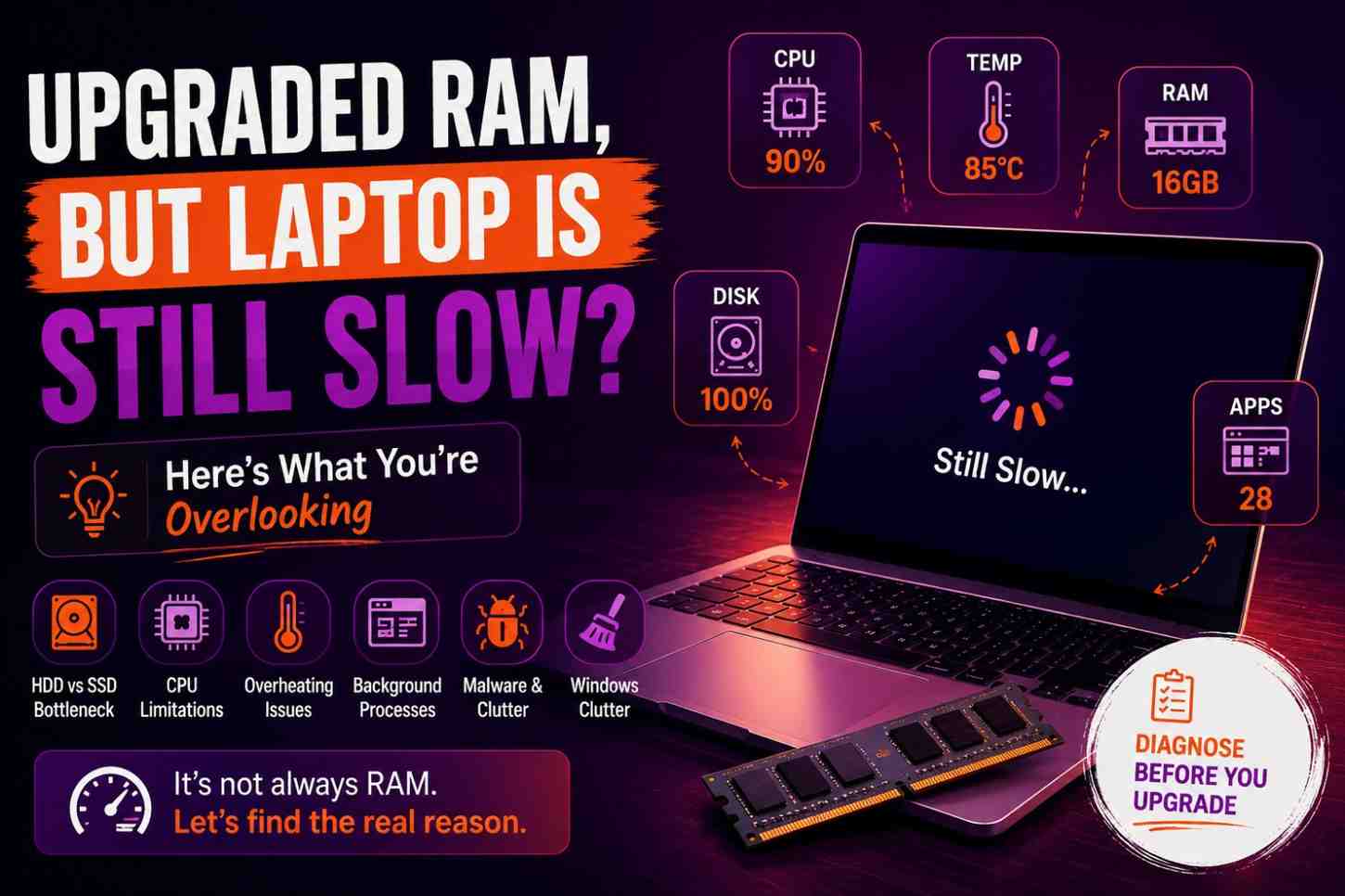
The #1 Reason Your RAM Upgrade Didn't Make a Difference
You're Still Using an Old Hard Drive
This was the lesson that surprised me the most.
I spent time researching RAM, comparing different sizes, watching upgrade videos, and carefully installing the new memory. What I didn't pay attention to was the storage drive sitting inside the laptop.
That old hard drive had quietly become the biggest bottleneck in the entire system.
Think about it this way. RAM helps your laptop handle things that are already open. Your storage drive is responsible for finding and loading everything in the first place. If that process is slow, adding more RAM won't magically fix it.
HDD vs SSD: A Bigger Difference Than Most People Expect
Many older laptops still use a traditional hard disk drive (HDD). It has moving parts spinning thousands of times every minute. That technology worked fine years ago, but modern software asks much more from it.
An SSD works differently. No moving parts. No waiting for a spinning disk to find data. Everything happens almost instantly.
The first time I used a laptop with an SSD after years of using an HDD, it honestly felt like a completely different machine. The processor hadn't changed. The RAM hadn't changed. Yet everything felt smoother.
Learn difference between HDD & SDD through this visual guide
The Signs Are Usually Obvious
If any of these sound familiar, your storage drive deserves attention:
The laptop takes several minutes to fully start up.
Programs sit there "thinking" before opening.
File Explorer freezes randomly.
The disk activity light is constantly flashing.
The laptop feels busy even when you're doing almost nothing.
A lot of people say, "My laptop still feels slow after upgrading RAM." In reality, they're waiting on an aging hard drive every few seconds without realizing it.
Before You Spend More Money
Before buying another RAM kit or thinking about replacing your entire laptop, try identifying the actual bottleneck first.
Use our Slow Laptop Diagnosis Tool to check whether your storage drive, processor, temperature, or something else is really causing the slowdown. You might save yourself from buying an upgrade you don't actually need.
The Problem Might Be Sitting Somewhere Else
When people upgrade RAM, they usually expect an instant transformation. Faster startup. Faster apps. Faster everything.
I expected the same thing.
The strange part was that my laptop technically had more memory, yet opening a browser still felt slow. Launching programs still required patience. Even restarting the machine felt like waiting in a long queue.
That's when I stopped looking at the RAM and started looking at the storage drive.
The Difference Between HDD and SSD Is Massive
A lot of older laptops still run on a traditional hard disk drive (HDD). It stores data on spinning disks and mechanical parts. It works, but it works the way technology worked years ago.
An SSD is completely different.
There are no spinning parts. No waiting for a disk to rotate into position. Files, programs, and Windows itself can be accessed much faster.
The funny thing is that many people spend money adding more RAM when the storage drive is actually slowing down every task they perform.
Why Hard Drives Feel Slower Over Time
An old HDD doesn't usually fail overnight. It becomes gradually slower, which makes the problem easy to miss.
One day your laptop takes an extra few seconds to boot. A few months later, programs need longer to open. Eventually, even simple tasks start feeling sluggish.
Because the slowdown happens slowly, many people assume they simply need more RAM.
Look at What Happens During Startup
A laptop can have plenty of RAM and still take forever to reach the desktop.
Why?
Because Windows has to load thousands of files during startup. If the storage drive is slow, the entire process slows down with it.
The same thing happens when opening applications. Before a program can run, it has to be loaded from storage. RAM only comes into play after that process begins.
Signs Your Storage Drive Is the Real Problem
A few clues usually point in the same direction:
The laptop takes several minutes to start.
Programs take forever to launch.
File Explorer freezes occasionally.
The hard drive activity light keeps blinking nonstop.
Everything feels busy even when only one or two apps are open.
If these symptoms sound familiar, your storage drive deserves more attention than your RAM.
Check Before You Buy Another Upgrade
One mistake I see people make is throwing more hardware at a problem without knowing what's actually causing it.
Before spending money on another upgrade, run our Slow Laptop Diagnosis Tool. It can help you figure out whether your storage drive, processor, overheating, or something else is really behind the slowdown.
Sometimes the fastest way to fix a slow laptop isn't adding more RAM. It's finding the bottleneck that everyone else overlooked.
A free software to check your Drive health
Your CPU Might Be the Real Bottleneck
More RAM Can't Fix a Slow Processor
This is something I learned the hard way.
After upgrading RAM, I kept expecting my laptop to suddenly become faster. But opening multiple programs still felt heavy. Switching between tasks wasn't smooth. The laptop would hesitate even during basic work.
The issue wasn't memory anymore. The processor simply couldn't keep up.
Think of your CPU as the person doing all the work. RAM gives that person a bigger desk, but if the worker is already struggling to keep up with the workload, a larger desk won't magically make them faster.
What Is a CPU Bottleneck?
A CPU bottleneck happens when the processor becomes the limiting factor in your laptop's performance.
The laptop has enough RAM. The storage drive is fine. But the processor is working at its limit and can't process tasks quickly enough.
This is common on older laptops that were designed for lighter workloads years ago.
Some Laptops Simply Show Their Age
I've seen this happen a lot with older dual-core processors and entry-level machines.
A laptop that handled emails, documents, and web browsing perfectly five years ago may struggle today because modern software demands much more power.
Browsers use more resources. Websites are heavier. Applications run more background processes. The workload keeps growing, but the processor stays the same.
Signs Your CPU Is Holding Everything Back
A few clues usually point toward a processor problem:
The cooling fan runs almost constantly.
The laptop becomes sluggish when multiple apps are open.
Videos stutter while other tasks are running.
The system feels slow even after upgrading RAM.
CPU usage frequently stays near 80–100%.
One thing I noticed on my own machine was that the fan would become loud long before I started doing anything demanding. That was a strong hint that the processor was working much harder than it should.
A Quick Check Anyone Can Do
Open Task Manager by pressing:
Ctrl + Shift + Esc
Click the Performance tab and watch the CPU usage while using your laptop normally.
If it keeps jumping close to 100% during everyday tasks like browsing, streaming, or working on documents, your processor may be the real reason your laptop still feels slow.
You can learn more about this here
Don't Guess—Find the Actual Bottleneck
Many people immediately blame RAM because it's the upgrade everyone talks about. But performance problems often come from somewhere else.
Sometimes the problem isn't a lack of memory. It's a processor that's already carrying more than it can comfortably handle.
Startup Programs Are Quietly Slowing Everything Down
The Apps You Forgot About
One day I opened Task Manager because my laptop felt unusually sluggish. I wasn't editing videos. I wasn't gaming. I only had a browser open.
Yet dozens of programs were already running in the background. That's when I realized something most people never check.
Many applications automatically start every time Windows boots up. You install them once, forget about them, and they quietly consume resources every single day.
The Usual Suspects
A few apps show up again and again:
Discord
Microsoft Teams
Spotify
Adobe Creative Cloud
Steam
Epic Games Launcher
OneDrive
RGB and gaming software
Individually, they may not seem like a big deal. Together, they create a traffic jam before you've even started working.
Why a RAM Upgrade Doesn't Solve This
This is where a lot of people get confused.
Even after upgrading RAM, these programs are still launching automatically. They're still checking for updates. They're still syncing files. They're still running background services.
Your laptop ends up spending energy managing unnecessary tasks instead of focusing on what you're actually doing. That's why some people say, "I upgraded my RAM but my laptop is still slow."The memory wasn't the problem. The clutter was.
A Small Change That Feels Surprisingly Big
I once disabled several startup programs on an older laptop and the difference was noticeable the very next restart. The boot time became shorter. The desktop felt responsive sooner. The constant background activity settled down. It wasn't a fancy upgrade. It didn't cost a penny. But it made the laptop feel lighter.
How to Check Startup Apps
Windows makes this easy.
Press Ctrl + Shift + Esc to open Task Manager.
Click the Startup Apps tab.
Look through the list carefully.
Disable programs you don't need launching automatically.
Be sensible here.
Security software and important system services should stay enabled. Focus on apps that don't need to be waiting for you every time the laptop starts.
You can use our trusted free tool to find what's slowing down my laptop
Less Running in the Background Means More Resources for You
Many laptops aren't actually struggling because they lack RAM. They're struggling because too many things are competing for attention before the user even begins their work.
If your laptop still feels slow after a RAM upgrade, spend five minutes checking your startup programs. It might be one of the easiest performance improvements you'll ever make.
You can learn about startup apps here
How to Disable Startup Apps in Windows (and What to Disable?) A visual guide
Your Laptop Could Be Overheating Without You Realizing It
The Problem Isn't Always Hardware
For a long time, I thought overheating was something obvious. I assumed a laptop would shut down or show a warning message if temperatures got too high.
Most of the time, that's not what happens.
Instead, the laptop quietly slows itself down to protect its internal components. From the outside, it just feels sluggish.
Apps take longer to respond. Browsing feels less smooth. Everything seems slightly delayed.You notice the symptoms, but not the cause.
What Is Thermal Throttling?
Modern processors are smart. When temperatures climb too high, the CPU automatically reduces its own speed. It does this to prevent damage from excessive heat. The result?
Your laptop stays safe, but performance takes a hit.This is called thermal throttling, and it's one of the most overlooked reasons a laptop still feels slow after a RAM upgrade.
A Pattern I Started Noticing
One clue stood out to me. The laptop would work reasonably well when I first turned it on. Then, after 15 or 20 minutes, everything started feeling heavier.
Tabs switched slower. Programs hesitated. The fan became louder. At first, I blamed Windows updates, browser extensions, and even my internet connection. The real issue was heat building up inside the machine.
Warning Signs Worth Paying Attention To
Overheating doesn't always announce itself dramatically. Look for these signs:
The bottom of the laptop feels unusually hot.
The fan runs almost constantly.
Performance gets worse the longer you use it.
Simple tasks suddenly feel demanding.
The laptop becomes noisy during basic browsing or office work.
If several of these sound familiar, heat may be limiting your performance.
Why It Happens
Dust is often the biggest culprit.
Over time, dust collects inside vents and cooling fans, restricting airflow. The laptop has to work harder to stay cool.
Other common causes include:
Blocked air vents
Dried thermal paste
Using the laptop on beds or cushions
High room temperatures
None of these problems can be solved by adding more RAM.
A Quick Check Before Spending More Money
If your laptop feels slower after it's been running for a while, don't immediately assume you need another upgrade.
Heat could be the reason your processor is holding back performance.
Sometimes the solution is as simple as improving cooling rather than buying new components.
You can monitor laptop temperatures through this software
Malware and Background Processes Can Make a Fast Laptop Feel Slow
Not Every Performance Problem Comes From Hardware
A lot of people assume a slow laptop means something inside the machine needs upgrading.
I used to think the same way.
Then one day I opened Task Manager and found several processes running that I didn't even recognize. I wasn't editing videos. I wasn't gaming. Yet something was constantly consuming resources in the background.
That's when I realized not every slowdown comes from old hardware. Sometimes the problem is software quietly working behind the scenes.
The Stuff You Never Intentionally Installed
Some performance killers don't arrive with a warning label.
They sneak in through:
Browser extensions you forgot about
Free software bundles
Fake system cleaners
Adware
Suspicious downloads
Browser toolbars nobody asked for
At first, everything seems normal. Then the laptop slowly becomes less responsive without any obvious explanation.
The Symptoms Can Be Misleading
What makes this tricky is that malware and background processes often imitate hardware problems.
You might notice:
Random lag spikes
Fans running harder than usual
High CPU usage when you're doing very little
Slower battery life
Longer startup times
Browser tabs feeling unusually heavy
Naturally, many people blame RAM. In reality, something else may be consuming resources before you even begin your work.
Browser Extensions Deserve a Closer Look
This one catches people by surprise.
It's easy to install extensions and never think about them again. Over time, they accumulate. Some constantly scan web pages, inject advertisements, track browsing activity, or communicate with external servers.
One bad extension can make a browser feel sluggish no matter how much RAM you've installed.
Every few months, I review my extensions and remove anything I haven't used recently. The browser almost always feels cleaner afterward.
A Simple Check That's Worth Doing
Before buying another upgrade, run a security scan.
Start with Windows Defender. It's already built into Windows and does a surprisingly good job for most users.
If you want a second opinion, Malwarebytes is another useful tool for detecting unwanted software that may have slipped through. Check malware in your laptop
The process takes far less time than researching new hardware and could reveal the real reason your laptop is struggling.
Don't Ignore the Invisible Stuff
One lesson I've learned over the years is that the most obvious problem isn't always the real one.
If your laptop still feels slow after upgrading RAM, spend a few minutes investigating what is running in the background. You may discover that the issue isn't a lack of memory at all. It's software quietly stealing resources every minute the laptop is turned on.
You Upgraded the RAM, But Windows Is Still a Mess
Years of Small Problems Add Up
Sometimes a laptop isn't slow because of one big issue. It's slow because of hundreds of tiny ones.
I've seen laptops that have been used for five or six years without ever getting a proper cleanup. Programs were installed and forgotten.
Files were scattered everywhere. Old software left pieces of itself behind after being uninstalled. Nothing looked catastrophic on its own. Together, though, it created a system that felt heavier every year.
Temporary Files Never Stay Temporary
The name sounds harmless.
Temporary files are supposed to be short-term data that applications create while working. The problem is that many of them stick around long after they're needed. Months turn into years.
Eventually, thousands of unnecessary files occupy storage space and contribute to general system clutter. You don't notice it happening day by day, but the laptop definitely feels the difference.
Old Software Leaves a Trail Behind
One thing that surprised me was how many applications leave leftovers behind after removal. You uninstall a program.
It disappears from the desktop.
Yet background services, startup entries, folders, and configuration files may remain. Over time, Windows starts carrying around baggage from programs you stopped using years ago.
Sometimes the System Just Feels Tired
That's the best way I can describe it. The laptop technically works. Nothing is completely broken. But everything feels slightly slower than it should.
Menus take longer to appear. Search results arrive a bit later. Applications need extra time to launch. A RAM upgrade won't fix that kind of accumulated clutter.
A Few Simple Improvements Can Help
You don't need advanced technical skills to make a noticeable difference.
Start by:
Removing applications you no longer use.
Deleting unnecessary files.
Emptying the Recycle Bin.
Running Windows Disk Cleanup.
Updating Windows and device drivers.
None of these changes are exciting. They won't generate flashy benchmark scores. But together they can make a laptop feel much healthier.
Don't Judge Performance by RAM Alone
One mistake I see often is treating RAM as the answer to every performance problem. A laptop can have plenty of memory and still feel slow because the operating system itself has become overloaded with years of digital clutter.
Before spending more money on upgrades, take a little time to clean up Windows. Sometimes the biggest improvement comes from removing what you don't need rather than adding something new.
How Much RAM Do You Actually Need?
One thing I learned while troubleshooting laptops is that people often treat RAM like horsepower. The assumption is simple: more must be better.
In reality, that's not always true. I've seen laptops with 32GB of RAM feel sluggish because they had an old hard drive.
I've also seen machines with 8GB run surprisingly well because everything else was optimized. The goal isn't to buy the most RAM possible. The goal is to have enough RAM for the way you actually use your laptop.
4GB RAM: The Bare Minimum
A few years ago, 4GB was manageable for basic tasks. Today, it feels restrictive. Open a handful of browser tabs, stream a video, and launch another application, and you'll likely notice things slowing down.
Modern websites alone consume far more memory than many people realize.If your laptop still has 4GB RAM, upgrading can make a noticeable difference.
8GB RAM: Still the Sweet Spot for Many Users
For everyday work, 8GB remains surprisingly capable. If your routine includes:
Web browsing
Microsoft OfficeOnline classes
Email
Streaming videos
Then 8GB is often enough to provide a smooth experience.Many people upgrade beyond this without ever using the extra memory they paid for.
16GB RAM: Comfortable and Future-Proof
This is the amount I recommend most often. With 16GB, you gain breathing room.
You can keep dozens of browser tabs open, run multiple applications at once, edit photos, and multitask without constantly worrying about memory limits.
For students, professionals, and heavy multitaskers, it's a very balanced choice.
32GB and Beyond: Only If Your Work Demands It
More RAM absolutely has a purpose. But not for everyone. If you're doing things like:
Video editing
3D rendering
Software development
Virtual machines
Large creative projects
Then 32GB or more can be valuable. For normal browsing and office work, though, most of that memory may sit unused for long periods.
Don't Upgrade Based on Guesswork
One of the biggest mistakes I see is upgrading RAM simply because someone said more RAM equals better performance. Sometimes that's true.
Sometimes the laptop is struggling because of storage, overheating, startup programs, or an aging processor.That's why it's worth identifying the actual bottleneck before spending money.
The Real Takeaway : The best amount of RAM isn't the largest amount you can afford.It's the amount your workload genuinely needs.
A well-maintained laptop with the right amount of RAM will almost always feel better than a neglected laptop packed with memory it never uses.
That's why, when a laptop is still slow after a RAM upgrade, the smartest question isn't "How much RAM do I have?" It's "What's really slowing this machine down?"
Before Spending More Money, Check These 5 Things First
I wish someone had given me this checklist before I bought extra RAM. It would've saved me time, money, and a lot of frustration.
When a laptop feels slow, the temptation is to immediately search for upgrades. New RAM. New parts. Maybe even a new laptop altogether.
But before you spend another dollar, take ten minutes and work through these five checks. You might discover the real problem is something far easier to fix.
Is an SSD Installed?
This is the first thing I check whenever someone says their laptop feels slow. If the laptop is still running on an old HDD, upgrading to an SSD will often deliver a bigger improvement than adding more RAM.
A surprising number of "slow laptop" complaints come down to outdated storage.
Is CPU Usage Staying Under Control?
Open Task Manager and watch CPU usage during normal tasks. If the processor is constantly sitting near 100%, adding more RAM won't solve much.
The CPU may simply be struggling to keep up with modern workloads.It's a quick test that reveals a lot.
Have You Cleaned Up Startup Programs?
Many laptops start the day already overloaded. Cloud sync apps, gaming launchers, chat apps, update services, and dozens of background processes all compete for resources before you've even opened your first browser tab.
Removing unnecessary startup programs can make a laptop feel noticeably lighter.
Are Temperatures Healthy?
Heat is a silent performance killer.A laptop doesn't need to shut down to suffer from overheating. Most machines simply slow themselves down to stay safe.
If performance gets worse after 15–20 minutes of use, temperatures deserve a closer look.
Have You Ruled Out Malware?
Not every slowdown is caused by hardware. Background software, adware, browser extensions, and malware can quietly consume resources all day long.
A quick security scan is often worth doing before making any upgrade decisions.
Don't Guess. Diagnose
After helping friends and troubleshooting my own devices, I've learned that guessing is usually the expensive path.
Most people assume they know what's causing the slowdown. Many are wrong.
That's exactly why I built these tools.
Slow Laptop Diagnosis Tool – Helps identify the most likely performance bottleneck. Laptop Upgrade Advisor Pro – Checks for common issues like overheating, excessive startup apps, and system health concerns and suggest whether to upgrade laptop or not.
Not sure what's slowing your laptop down? Run these free tools first. A five-minute diagnosis can save you from buying upgrades you don't actually need.
The smartest upgrade isn't always the next piece of hardware. Sometimes it's simply understanding what's really happening inside your laptop.
What Actually Fixed My Slow Laptop
After everything I went through, the funniest part is that RAM wasn't the hero of the story. Don't get me wrong. The upgrade helped a little.
I could keep more browser tabs open and multitasking felt smoother. But the dramatic speed boost I was expecting never arrived. The real improvements came from places I wasn't even looking.
The SSD Upgrade Changed Everything
If I had to rank every upgrade I've ever made, switching from an old hard drive to an SSD would sit comfortably at the top. The difference wasn't subtle.
The laptop started faster. Applications opened almost instantly. Windows felt responsive again.
For the first time in years, I wasn't sitting there waiting for basic tasks to complete.It felt less like an upgrade and more like getting a newer machine.
Removing Startup Clutter Helped More Than Expected
I also discovered that my laptop was launching a small army of programs every time it booted. Some of them I hadn't used in months. Others I had completely forgotten existed.
After trimming the startup list, the laptop felt lighter. It reached the desktop faster and stopped wasting resources on things I didn't actually need.
Heat Was Quietly Holding Performance Back
This one surprised me. The laptop wasn't shutting down or showing temperature warnings, so I assumed cooling wasn't an issue.
I was wrong. After cleaning dust from the vents and improving airflow, performance became more consistent. The random sluggishness that appeared after long work sessions started disappearing.
The laptop wasn't working harder anymore. It was working smarter because it could finally stay cool.
Small Fixes Added Up
None of these changes were particularly exciting on their own. A little cleanup. A storage upgrade. Better cooling. Fewer background processes.
But together, they completely changed the experience. That's something I wish more people understood.
Laptop performance is rarely controlled by one single component. It's usually the result of several small factors working together.
The Lesson I Learned
When someone tells me, "I upgraded my RAM but my laptop is still slow," I don't immediately think about memory anymore. I think about storage. I think about temperatures. I think about startup programs.
I think about everything happening behind the scenes. Because in many cases, the problem isn't that the laptop needs more RAM. The problem is that the real bottleneck hasn't been found yet.
That's why diagnosing the cause matters more than blindly buying upgrades. Once you know what's actually slowing your laptop down, the solution often becomes much simpler—and much cheaper—than you expected.
RAM Isn't Always the Problem
When I first upgraded my RAM, I thought I had finally solved the mystery.I was convinced more memory would make everything faster. When it didn't, I started paying closer attention to what the laptop was actually doing instead of what I assumed it was doing.
That's when things became interesting. The storage drive was slowing down file access. Background programs were constantly running.
Temperatures were higher than they should have been. The processor was working harder than I realized. RAM wasn't innocent, but it also wasn't the main culprit.
And that's the lesson I hope you take away from this article.
Slow Laptops Usually Have a Story
A laptop rarely becomes slow because of one dramatic failure.More often, performance fades little by little. A startup app gets added. Storage fills up.
Dust builds inside the cooling system. Windows collects years of digital clutter. The slowdown happens so gradually that you barely notice it until one day the laptop feels frustrating to use. That's why quick assumptions can be expensive.
Stop Chasing Upgrades. Start Looking for Bottlenecks.
The biggest mistake I see people make is upgrading components before identifying the actual problem. More RAM sounds like a solution because it's simple and easy to understand.
But if your laptop is struggling because of an old hard drive, overheating, malware, or a weak processor, adding memory won't magically remove those problems. The real goal isn't buying more hardware.
The real goal is finding the bottleneck. Once you know what's holding the laptop back, the fix often becomes obvious.
A Few Minutes of Diagnosis Can Save You Money
Before you order another upgrade, take a step back and investigate. Check your storage drive. Look at CPU usage. Review startup programs. Monitor temperatures.
Run a malware scan or use our Slow Laptop Diagnosis Tool to pinpoint the most likely cause. You may discover that the solution costs nothing at all.
Frequently Asked Questions
Why is my laptop still slow after upgrading RAM?
I used to think RAM was the answer to every performance problem. It isn't. RAM only helps when your laptop is actually running out of memory. If the real issue is an old hard drive, an overheating processor, too many startup apps, or malware, adding more RAM won't make a dramatic difference.
Will upgrading from 8GB to 16GB make my laptop faster?
It depends on how you use your laptop. If you regularly have dozens of browser tabs, multiple applications, or demanding software open, you'll probably notice smoother multitasking. But if your laptop struggles to boot or open programs, the bottleneck is likely somewhere else.
Is an SSD upgrade better than a RAM upgrade?
For many older laptops, absolutely. The biggest performance jump I've ever experienced came from replacing a traditional hard drive with an SSD. Programs launched faster, Windows loaded quicker, and everyday tasks felt much more responsive. In many cases, an SSD delivers a larger improvement than extra RAM.
How can I find out what's actually slowing down my laptop?
Instead of guessing, start checking the basics. Look at CPU usage, disk usage, temperatures, and startup programs. You can also use our Slow Laptop Diagnosis Tool to identify the most likely bottleneck before spending money on upgrades you may not need.
Can overheating really make a laptop feel slow?
Yes, and it happens more often than most people realize. When temperatures get too high, the processor automatically reduces its speed to protect itself. The laptop stays safe, but performance suffers. That's why a machine can feel fast when first turned on and noticeably slower after twenty minutes of use.
How much RAM is enough for most people?
For general browsing, office work, streaming, and everyday tasks, 8GB is still enough for many users. If you multitask heavily or want extra breathing room, 16GB is usually the sweet spot. Beyond that, additional RAM only helps if your workload genuinely needs it.
Should I buy more RAM or a new laptop?
Before making either decision, figure out what's causing the slowdown. Sometimes a simple SSD upgrade, startup cleanup, or cooling fix can make an older laptop feel surprisingly capable again. A diagnosis is almost always cheaper than replacing the entire machine.
Can too many startup programs slow down a laptop?
Definitely. I have seen laptops launch dozens of apps in the background before the user even opens a browser. Every one of those programs consumes resources. Cleaning up startup apps is one of the easiest and most overlooked ways to improve performance.
Final Thoughts
If you've upgraded RAM but laptop is still slow, don't feel like you wasted your money. The upgrade may still be helping.
It just wasn't solving the right problem. Sometimes the fastest laptop isn't the one with the most RAM. It's the one where every component is working together without something quietly holding it back.
Find the bottleneck first.Then fix what actually needs fixing.
If you want to know whether you should upgrade or replace your laptop, you can use our free trusted tool Laptop Upgrade Advisor Pro