

It Was Fine Yesterday. Today It Feels Broken.
Yesterday, your laptop opened in seconds. Today, it sits on the loading screen like it's thinking about life. The browser freezes before the first page even loads. Apps that normally pop open now make you wait. Even the cooling fan suddenly sounds like it's working overtime.
If you've ever stared at your screen wondering, "What happened overnight and why is my laptop so slow all of a sudden ?", you're not imagining things. A laptop can feel perfectly normal one day and frustratingly slow the next. It catches people off guard because nothing obvious seems to have changed.
The good news is that a sudden slowdown usually has a cause. It could be something as simple as a background update, a startup program that's gone rogue, storage that's quietly filled up, or hardware beginning to show early warning signs. The challenge isn't fixing the problem—it's figuring out which one you're actually dealing with.
Instead of guessing or downloading random "PC cleaner" apps, it's better to work through the possible causes one by one. In most cases, the real culprit reveals itself much faster than people expect.
Quick Answer: Why Is My Laptop So Slow All of a Sudden ?
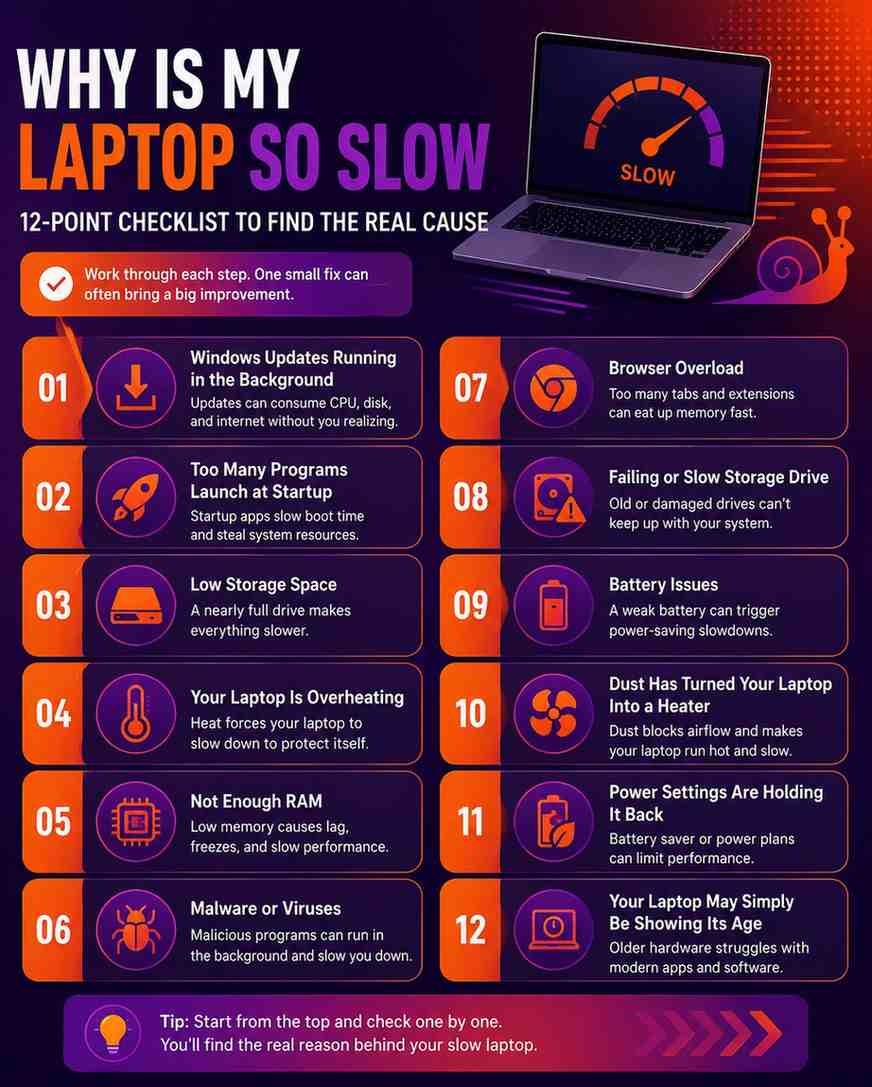
If your laptop suddenly became slow, don't assume it's reaching the end of its life. In many cases, the slowdown is caused by a software process or a temporary issue rather than a failing computer. Background Windows updates, limited storage space, overheating, too many startup apps, browser overload, malware, insufficient RAM, or a struggling SSD can all make a laptop that felt fast yesterday seem frustratingly sluggish today.
The Most Common Reasons
Background updates are quietly installing and using your CPU, memory, and storage.
Low storage space leaves little room for Windows to work efficiently.
Overheating forces the processor to slow itself down to reduce heat.
Too many startup apps consume valuable resources before you even open a program.
A failing SSD or hard drive can make everything—from booting to opening files—feel painfully slow.
Malware or unwanted software may be running hidden tasks that drain performance.
Too many browser tabs or extensions can overwhelm your RAM, especially if you multitask often.
Limited RAM makes your laptop constantly swap data to storage, causing lag and freezing.
The key is not to guess. Different problems can produce the same symptoms, but the solution depends on identifying the real cause first. Once you know what's slowing your laptop down, fixing it becomes much easier—and in many cases, you won't need to spend money on new hardware.
The Fastest Way to Diagnose a Slow Laptop
One mistake I see people make all the time is trying random fixes without knowing what's actually wrong. They clear temporary files, uninstall apps, restart their laptop five times, and sometimes even spend money on upgrades that don't solve the real problem.
A slow laptop isn't caused by one thing. The symptoms can look almost identical whether the issue is overheating, low storage, a failing SSD, too many startup apps, or simply a browser using more memory than it should. That's why guessing usually wastes time.
Start With a Proper Diagnosis
Before changing settings or replacing hardware, figure out why your laptop is slow.
To make that easier, I built a free Slow Laptop Diagnosis Tool for Laptop Aura. Instead of giving generic advice, it walks you through a few simple questions about your laptop's behavior and points you toward the most likely cause.
In less than two minutes, you'll receive:
A likely explanation for why your laptop suddenly became slow
A performance score based on your answers
Practical recommendations you can try right away
Clear guidance on whether the issue is likely software-related or a sign of failing hardware
The goal isn't to overwhelm you with technical terms. It's to help you stop guessing and start fixing the problem with confidence.
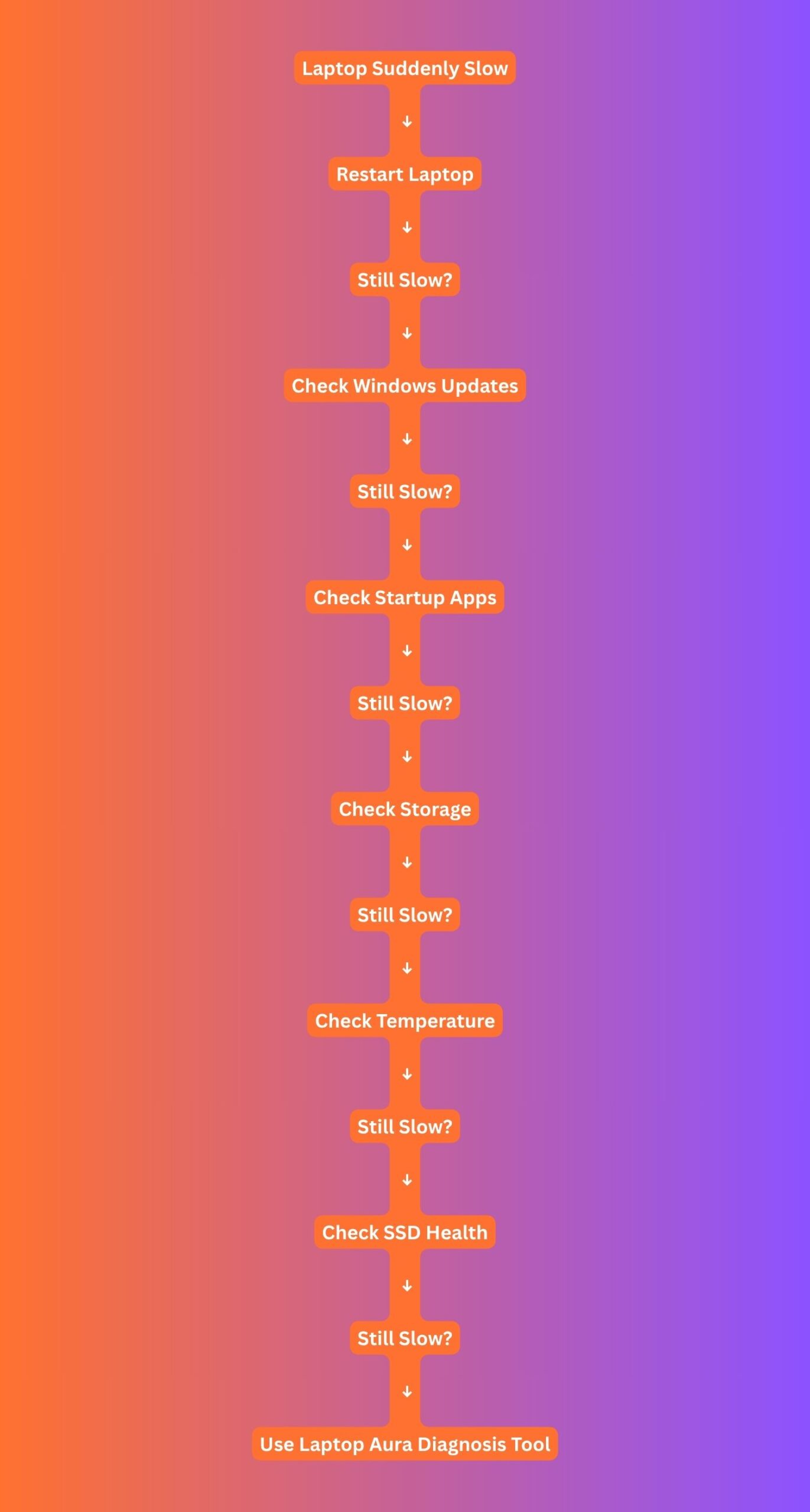
Laptop Aura™ 2-Minute Slow Laptop Decision Tree
Follow this quick decision tree to narrow down the most likely reason your laptop suddenly became slow before trying random fixes.
Quick Diagnosis Checklist
Slow Laptop? Here's the Trick to Find Out What's Causing It
Prefer watching instead of reading? The video below walks through several of the same troubleshooting steps covered in this guide and is a great visual companion before you start diagnosing your laptop.
Common Causes Ranked by Likelihood
1. Your Laptop Is Installing Updates in the Background
One of the most common reasons a laptop suddenly slows down is also one of the easiest to overlook—it's busy updating itself.
The tricky part is that Windows doesn't always announce what it's doing. You might sit down to check your emails or finish a project, only to find that everything feels sluggish. Apps take longer to open, the cursor hesitates, and even simple tasks seem unusually slow.
How to Tell If This Is the Problem
A background update often leaves a few clues behind:
Your laptop is slower than usual right after turning it on.
The cooling fan runs constantly, even when you're doing very little.
Opening files or programs takes much longer than normal.
Task Manager shows unusually high Disk or CPU usage.
The slowdown appeared suddenly without installing any new software yourself.
If those signs sound familiar, don't panic. Your laptop may simply be finishing work behind the scenes.
Why Windows Updates Slow Things Down
Installing an update isn't just about downloading files. Windows also replaces system components, installs drivers, checks compatibility, rebuilds search indexes, and cleans up old update files. All of that competes for your laptop's processor, memory, and storage.
On newer laptops with fast SSDs, you might barely notice. On older systems—or laptops with limited RAM or traditional hard drives—the difference can feel dramatic.
What You Should Do
Resist the urge to interrupt the process. Shutting down your laptop or forcing a restart while updates are installing can create bigger problems than the slowdown itself.
Instead:
Let the update finish completely.
Restart your laptop once the installation is complete.
Open Settings → Windows Update and confirm there are no updates still waiting to install.
Give your laptop a few minutes after restarting, especially after a major Windows update.
I've seen plenty of people assume their laptop was failing, only to discover it returned to normal once Windows finished updating. Before you start deleting files or shopping for new hardware, make sure your laptop isn't simply busy taking care of itself.
2. Too Many Programs Launch at Startup
A laptop rarely becomes slow because of one app. It's usually dozens of little things that quietly pile up over time.
Think about every program you've installed over the past year. Many of them ask if you'd like them to "start with Windows." Most people click Yes without thinking twice. Months later, your laptop is trying to launch all of them the moment you press the power button.
That's when boot times get longer, the desktop takes forever to become usable, and everything feels sluggish for the first few minutes.
The Silent Performance Killer
Startup apps are sneaky because they're easy to forget about. You might not even open some of these programs anymore, yet they're still running every single time your laptop starts.
Common examples include:
Discord
Steam
Spotify
Microsoft Teams
Adobe Creative Cloud
OneDrive
Dropbox
Printer utilities
Gaming launchers
On their own, most of these don't use a huge amount of power. Together, they compete for your laptop's memory, processor, and storage before you've even opened your first browser tab.
How to Check Startup Apps
Windows makes this surprisingly easy.
Press Ctrl + Shift + Esc to open Task Manager.
Click Startup apps (or the Startup tab on older versions of Windows).
Look at the Startup impact column.
Disable apps you don't need immediately after turning on your laptop.
Don't worry—you aren't uninstalling anything. Disabling a startup app simply means it won't launch automatically. You can still open it whenever you need it.
A Simple Habit That Keeps Your Laptop Fast
Every few months, spend two minutes checking your startup list. If you haven't used an app in weeks, ask yourself whether it really needs to open every time your laptop boots.
I've seen laptops feel noticeably faster after disabling just a handful of unnecessary startup programs. It's one of the easiest performance improvements you can make, and it doesn't cost a penny.
Slow Startup in Windows 11? Fix it Like IT Support
Prefer watching instead of reading? The video below walks through several of the slow startup troubleshooting steps covered in this guide and is a great visual companion before you start diagnosing your laptop.
3. Your Storage Is Almost Full
A full storage drive doesn't usually slow your laptop overnight. What happens is much quieter. Every download, Windows update, browser cache, screenshot, and forgotten file slowly eats away at your free space until one day your laptop starts feeling heavier than it used to.
I've seen people assume their processor or RAM was the problem, only to discover their drive was sitting at 98% capacity.
Why a Full Drive Slows Everything Down
Your laptop needs breathing room. Windows constantly creates temporary files, stores update data, manages virtual memory, and caches information to make everyday tasks feel faster.
When your storage is nearly full, there's very little space left for those background processes to work efficiently.
If your laptop uses an SSD, free space becomes even more important. SSDs perform best when they have unused blocks available to write and reorganize data.
As the drive fills up, write speeds can gradually drop, making everything from opening apps to saving files feel slower.The result isn't always dramatic at first. You might notice little delays here and there until those small pauses become impossible to ignore.
How to Check Your Storage
Checking takes less than a minute.
Open Settings.
Go to System → Storage.
See how much free space is available on your main drive (usually C:).
If the storage bar is almost full, you've likely found one of the reasons your laptop is struggling.
A Simple Rule Worth Following
Try to keep at least 15–20% of your storage drive free. That space gives Windows room to manage updates, temporary files, and everyday background tasks without constantly fighting for space.
If you're running low, start with the obvious wins. Empty the Recycle Bin, remove programs you no longer use, clear your Downloads folder, and move large photos or videos to cloud storage or an external drive.
You don't need to delete everything—just enough to let your laptop breathe again. Sometimes, freeing up a few dozen gigabytes is all it takes to make a laptop feel responsive again.
4. Your Laptop Is Overheating and Slowing Itself Down
Not every slow laptop has a software problem. Sometimes, it's simply getting too hot.
Here's something many people don't realize: your laptop is designed to protect itself. When the processor reaches a high temperature, it automatically reduces its own speed to prevent damage. This safety feature is called thermal throttling.
From your perspective, it just feels like the laptop suddenly became lazy. Games lose frames, videos stutter, apps take longer to respond, and even moving between browser tabs can feel sluggish.
The Problem Most Users Never Notice
Heat builds up gradually. Maybe you've been editing photos, joining video meetings, gaming for an hour, or even working with dozens of browser tabs open.
As the temperature rises, your laptop quietly begins lowering its performance to keep the processor within a safe operating range. That's why your laptop may feel perfectly fast for the first 15 or 20 minutes, then suddenly slow down without warning.
Warning Signs of Overheating
Overheating usually leaves a few clues behind.
The keyboard or bottom of the laptop feels unusually hot.
The cooling fan stays loud almost all the time.
Performance drops after using the laptop for a while.
Games, videos, or demanding programs become choppy.
The laptop performs better again after shutting it down and letting it cool.
If you've noticed these signs, heat is worth investigating before assuming your hardware is failing.
A Quick Way to Check Temperatures
You don't have to guess whether your laptop is overheating.
Free tools like HWMonitor, HWiNFO, or Core Temp can show your CPU temperature in real time. Open one of these tools, use your laptop as you normally would, and watch how the temperatures change.
If your processor regularly climbs into the 90–100°C (194–212°F) range under normal workloads and performance drops at the same time, thermal throttling is likely happening.
What You Can Do
Start with the simple fixes. Make sure the air vents aren't blocked, clean out any dust if you're comfortable doing so, and avoid placing your laptop on soft surfaces like a bed or blanket that restrict airflow.
If your laptop is a few years old and still overheats after cleaning, the cooling system may need maintenance, such as replacing the thermal paste or checking the fan.
Many people are surprised by how much smoother their laptop feels once it can keep itself cool again.
5. A Browser Tab Is Secretly Eating All Your RAM
It's easy to blame your laptop when everything starts lagging. But sometimes the real culprit is staring back at you from the browser.
Modern browsers are incredibly powerful, but they're also hungry. One heavy website can quietly use more memory than several lightweight apps combined.
Add a few AI tools, streaming videos, online meetings, and dozens of open tabs, and your laptop starts running out of breathing room.
The result? Pages freeze, typing feels delayed, videos stutter, and switching between tabs suddenly becomes frustrating.
One Tab Can Cause a Huge Slowdown
Not every website uses the same amount of memory. Some of the biggest offenders include:
Long YouTube videos left playing in the background
AI assistants with lengthy conversations
Google Docs or large spreadsheets
Social media sites that constantly refresh
Browser extensions running all the time
Even if you're not actively using those tabs, they may still be consuming RAM and processor power behind the scenes
How to Check What's Using Your Memory
Before closing everything, take a look at what's actually happening. If you're using Google Chrome:
Open Chrome.
Press Shift + Esc
Chrome's built-in Task Manager will appear
Sort the list by Memory Footprint.
Look for tabs or extensions using unusually high amounts of RAM.
You'll often find one or two tabs using far more resources than everything else combined.
A Small Habit That Makes a Big Difference
You don't need to keep fifty tabs open just because you might need them later. Bookmark pages you'll come back to, close tabs you've finished with, and remove browser extensions you no longer use.
If you're someone who likes keeping lots of research open, consider using tab grouping or a session manager instead of leaving everything running.
I've lost count of how many times people thought their laptop needed an upgrade, only to discover that closing a handful of heavy browser tabs made it feel responsive again.
Before spending money on new hardware, make sure your browser isn't quietly doing the damage.
6. Your SSD or Hard Drive May Be Failing
Most slow laptops don't have a dying storage drive. They're slowed down by software, updates, or too many background tasks. But if you've ruled out the obvious fixes and your laptop keeps getting worse, it's worth checking the health of your SSD or hard drive.
The reason is simple: your storage drive holds everything your laptop needs to access—Windows, your apps, your documents, and your photos. When that drive starts developing problems, every task that depends on it becomes slower and less reliable.
Normal Slowdown vs. Drive Failure
A normal slowdown usually happens under specific conditions. Your laptop may struggle when dozens of apps are open, during Windows updates, or after you've been working for hours.
A failing drive behaves differently. The slowdown becomes unpredictable. One day everything feels fine, and the next your laptop freezes while opening a simple folder.
Files take much longer to copy, programs stop responding without warning, and restarting the laptop doesn't always fix the problem. That's when it's time to look beyond software.
Warning Signs You Shouldn't Ignore
Pay attention if you notice several of these symptoms together:
Your laptop freezes randomly, even during simple tasks.
Files become corrupted or refuse to open.
File transfers that used to take seconds now take several minutes.
Windows displays messages about repairing the drive.
Programs crash because files can't be read properly.
If your laptop still uses a traditional hard drive (HDD), you hear repeated clicking or unusual mechanical noises.
One symptom alone doesn't always mean the drive is failing. A pattern of these issues is much more concerning.
How to Check Your Drive Health
The easiest place to start is Windows.
Open Command Prompt and run:
wmic diskdrive get status
If Windows reports OK, that's a good sign, but it isn't a complete health check. For a more detailed look, I recommend using a free tool like CrystalDiskInfo. It reads your drive's SMART (Self-Monitoring, Analysis and Reporting Technology) data and can warn you about problems before complete failure happens.
Don't Wait If You Suspect a Failing Drive
If your SSD or hard drive is showing warning signs, your first priority isn't making the laptop faster—it's protecting your data.
Back up your important files as soon as possible. Documents, family photos, work projects, and anything you can't replace should be copied to cloud storage or an external drive before troubleshooting further.
A failing drive can sometimes keep working for weeks or months, but it can also stop working with very little warning. Creating a backup today is much easier than trying to recover lost files tomorrow.
If you're unsure whether your drive is healthy, our Laptop Health Check Tool can help you identify early warning signs before they become serious.
7. Malware or Hidden Software Is Running
When people hear the word virus, they often imagine flashing warning messages or a laptop that refuses to start. Modern malware rarely behaves like that.
Today's malicious software is designed to stay unnoticed for as long as possible. It quietly uses your laptop's resources in the background, slows everything down, collects information, or displays unwanted ads without making it obvious that it's the cause.
That's why a laptop can gradually become slower even if nothing looks unusual on the screen.
Signs Something Isn't Right
Malware doesn't always leave obvious clues, but it often changes how your laptop behaves.
Watch for signs like:
High CPU or memory usage even when you're not running demanding programs.
Pop-up ads appearing on websites that normally don't have them.
Your browser opening unfamiliar pages or redirecting searches.
New toolbars or extensions you never installed.
The cooling fan running constantly while the laptop appears idle.
Programs taking much longer to launch than they used to.
One of these symptoms doesn't automatically mean your laptop is infected. But if several start happening together, it's worth investigating.
How to Scan Your Laptop Properly
Don't install the first "PC cleaner" or "speed booster" you find online. Ironically, some of those programs create more problems than they solve.
Instead:
Make sure Microsoft Defender is fully updated.
Run a Full Scan rather than a Quick Scan.
If you're still concerned, follow it with a second opinion using a trusted scanner such as Malwarebytes.
Remove any browser extensions you don't recognize or no longer use.
Running two trusted scans gives you a much clearer picture than relying on a single tool.
Prevention Is Easier Than Repair
The easiest malware to remove is the one that never gets installed. Be cautious with cracked software, fake download buttons, email attachments from unknown senders, and browser extensions that request unnecessary permissions.
A few extra seconds of caution can save hours of troubleshooting later.In my experience, malware isn't the most common reason a laptop suddenly becomes slow—but it's one of the easiest causes to rule out.
Once you know your system is clean, you can troubleshoot the remaining possibilities with much more confidence.
8. Your RAM Is Running Out of Room
RAM is like your laptop's short-term workspace. Every app you open, every browser tab you keep alive, every document you edit, and every video you play needs a small piece of that workspace.
The more things you ask your laptop to do at once, the more RAM it has to juggle. Once that workspace fills up, Windows has no choice but to start using your storage drive as temporary memory.
Even with a fast SSD, that's much slower than real RAM—and that's when your laptop starts feeling sluggish.
The Multitasking Trap
It's rarely one program that pushes your laptop over the edge. A typical day might look like this:
Twenty Chrome tabs open for research.
Spotify playing in the background.
Microsoft Teams running all day.
A Zoom meeting.
Photoshop or Canva open.
A few Word and Excel files.
Individually, none of these seem like a big deal. Together, they can use nearly all of your available memory. The result is easy to recognize. Switching between apps takes longer, the browser pauses before responding, and your laptop feels like it's constantly trying to catch up.
How to Check If RAM Is the Problem
You don't have to guess.
Press Ctrl + Shift + Esc to open Task Manager.
Select the Performance tab.
Click Memory.
If your RAM usage regularly sits above 80–90% during your normal workload, you've likely found one of the reasons your laptop feels slow.
How Much RAM Do You Really Need in 2026?
The answer depends on how you actually use your laptop—not on what's trending online.
More RAM only helps if you're running out of the RAM you already have. If your memory usage stays well below its limit, adding more won't magically make your laptop faster.
Should You Upgrade Your RAM?
If your laptop consistently runs out of memory and allows RAM upgrades, it's often one of the most worthwhile improvements you can make.
Before buying new RAM, check two things:
Whether your laptop supports memory upgrades.
Whether the slowdown is actually caused by RAM and not something else like overheating, a nearly full SSD, or too many startup apps.
I've seen people double their RAM expecting miracles, only to discover the real problem was a drive with almost no free space. A quick check in Task Manager can save you money—and point you toward the fix that actually matters.
If adding more memory didn't improve performance, read Why Is My Laptop Still Slow After Upgrading RAM?
9. A Recent Update May Have Broken Something
Updates are supposed to improve your laptop, and most of the time they do. But every now and then, an update introduces a new problem instead of fixing an old one.
I've seen laptops become noticeably slower after a Windows update, a graphics driver installation, or even an app update that wasn't fully compatible with the system.
It doesn't happen often, but when it does, the timing is usually obvious. Your laptop feels perfectly normal one day, you install an update, and suddenly everything seems slower.
The Problem Nobody Thinks About
Not all updates affect your laptop the same way. A few that can occasionally cause performance issues include:
Windows updates that temporarily create indexing tasks or introduce compatibility bugs.
Graphics (GPU) driver updates that affect gaming or video performance.
Wi-Fi or chipset driver updates that create unexpected system lag.
Large app updates for browsers, editing software, or productivity tools that demand more system resources than previous versions.
The update itself isn't always "bad." Sometimes it simply exposes another issue, like outdated drivers or hardware that was already struggling.
How to Tell If an Update Is Responsible
Ask yourself one simple question: Did the slowdown begin immediately after an update? If the answer is yes, that's a useful clue.
You can also check your update history:
Open Settings → Windows Update → Update history.
Look at the date of the most recent Windows or driver updates.Compare it with the day your laptop started feeling slow.If the timelines match, you've found a strong lead.
Should You Roll Back the Update?
If everything was working well before a recent driver update and the slowdown started immediately afterward, rolling back that specific driver can be a reasonable step.For example:
Open Device Manager.
Find the device you recently updated (such as your graphics adapter).
Open Properties.
Select the Driver tab.
If available, click Roll Back Driver.
For major Windows updates, Microsoft also provides options to uninstall certain updates or restore your system to an earlier restore point if one exists.
Don't Rush to Undo Every Update
Updates still play an important role in keeping your laptop secure and stable. Rolling one back should be the exception—not the first thing you try.
The key is to look for a clear pattern. If your laptop slowed down immediately after a specific update and other common causes don't fit, investigating that update makes sense.
Otherwise, you're usually better off leaving your system current and continuing your troubleshooting elsewhere.
Learn more about Microsoft Windows Updates
10. Dust Has Turned Your Laptop Into a Heater
Dust doesn't crash your laptop overnight. It builds up quietly, little by little, until one day your cooling system can't keep up anymore. I've seen laptops that looked perfectly fine from the outside but were packed with dust inside.
The fan was spinning as hard as it could, yet barely any air was making it through the vents. The laptop wasn't broken—it simply couldn't cool itself properly.When heat has nowhere to escape, performance is usually the first thing to suffer.
The Two-Year Problem
If you've owned your laptop for a couple of years and have never cleaned it, there's a good chance dust has already found its way inside.It's even more common if you:
Use your laptop on a bed, couch, or blanket.
Have pets that shed hair.
Live in a dusty environment.
Rarely move or clean your workspace.
Over time, dust sticks to the cooling fan and forms a blanket over the heatsink.
Instead of pushing cool air through the system, the fan ends up fighting against a wall of debris.Your laptop responds the only way it knows how—by slowing down to reduce heat.
What Cleaning Actually Helps
Cleaning the outside is a good start, but the biggest improvements usually come from restoring proper airflow. Focus on:
Air vents: Make sure they're free of visible dust and aren't blocked during use.
Cooling fan: Dust on the fan blades reduces airflow and makes the fan work harder.
Heatsink: This is where dust often packs tightly together, preventing heat from escaping efficiently.
If you're comfortable opening your laptop, use compressed air carefully and follow your manufacturer's service guide. If not, a professional cleaning every few years is often worth the cost, especially if the laptop has never been serviced.
A Small Clean Can Make a Big Difference
Don't expect dust removal to double your laptop's speed overnight. But if overheating has been forcing your processor to slow itself down, improving airflow can make the system feel noticeably smoother.
It's one of those fixes people rarely think about because the problem is hidden inside the laptop. Yet sometimes, all your machine really needs is the chance to breathe again.
A trusted software for temperature monitoring for your laptop
11. Your Battery Settings Are Quietly Holding Your Laptop Back
Sometimes, your laptop isn't slow because something is broken.It's slow because it's trying to save power. Windows and many laptop manufacturers include power-saving features that automatically reduce processor speed to extend battery life.
That's great when you're travelling or working away from a charger—but not so great when you're expecting full performance.
I've had people tell me their laptop suddenly felt much faster the moment they plugged it in. The hardware hadn't changed. The power settings had.
The Hidden Performance Limiter
When your battery gets low or Battery Saver turns on automatically, Windows starts making small changes behind the scenes. It may:
Reduce your processor's maximum performance.
Limit background activity.
Delay syncing and updates.
Lower overall power consumption.
Individually, these changes are subtle. Together, they can make your laptop feel noticeably less responsive.Some laptop brands also include their own software—such as Dell Power Manager, Lenovo Vantage, HP Support Assistant, ASUS MyASUS, or MSI Center—that offers extra battery modes. If one of these is set to Quiet, Eco, or Battery Saving, your laptop may intentionally prioritize longer battery life over speed.
How to Check Your Power Mode
It only takes a minute.
Open Settings.
Go to System → Power & Battery.
Look for Power Mode.
If it's set to Best Power Efficiency, try switching to Balanced or Best Performance when you're doing demanding work.
If your laptop includes manufacturer software, open it as well and check whether an energy-saving profile is enabled.
Use the Right Mode for the Right Job
There's nothing wrong with Battery Saver. In fact, it's useful when you're trying to make your battery last through a long day. The key is knowing when to turn it off.
If you're editing videos, attending online meetings, coding, gaming, or simply want your laptop to feel as responsive as possible, using a balanced or performance-focused power mode usually delivers a smoother experience.
A quick change in settings won't solve every slowdown, but it's one of the easiest things to check—and one of the most commonly overlooked. Sometimes your laptop is doing exactly what you asked it to do: save power instead of chasing maximum performance.
Battery issues can sometimes affect performance too. Read Why Is My Laptop Battery Draining So Fast?
12. Your Laptop May Simply Be Showing Its Age
After checking updates, startup apps, storage, overheating, RAM, and everything else on this list, there's one possibility left.
Your laptop might simply be getting older. That doesn't mean it's "dead." It just means the technology inside it was designed for a different generation of software.
A laptop that felt incredibly fast five or six years ago now has to handle larger Windows updates, heavier web browsers, AI-powered features, cloud syncing, higher-resolution videos, and websites that demand far more resources than they once did.
The laptop hasn't necessarily become weaker. The workload has become much heavier.
Sometimes It's Not a Bug
Every piece of hardware has limits. Over time:Modern applications become more demanding. Web browsers use more memory than they did a few years ago.
SSDs gradually wear with use, although most last many years under normal workloads. Older processors struggle with newer software designed for today's hardware.
None of these changes happen overnight, which is why the slowdown often feels gradual until one day it becomes impossible to ignore.
When an Upgrade Makes Sense
Before replacing your entire laptop, ask yourself one question:
What's actually holding it back? If your laptop still has a traditional hard drive (HDD), replacing it with an SSD can make it feel dramatically faster.
If your memory is constantly full, upgrading the RAM may be all you need. If both upgrades are possible and your processor is still capable, keeping your current laptop can be far more affordable than buying a new one.
However, if your processor is several generations old, your laptop can't be upgraded, and you've already tried the fixes in this guide, investing in a newer machine may save you more frustration in the long run.
Replace It Only After You've Ruled Everything Else Out
One thing I've learned is that people often replace laptops too early. I've seen machines that felt "finished" become surprisingly responsive again after a simple SSD upgrade, a RAM upgrade, or a proper cleaning.
On the other hand, I've also seen people spend hours chasing software fixes when the hardware had simply reached its practical limits. The goal isn't to keep an old laptop forever. It's to make a smart decision based on evidence rather than frustration.
If you've worked through the possible causes in this guide, you'll know whether your laptop needs a simple fix, a targeted upgrade, or whether it's finally time to move on.
When Should You Be Worried?
The good news is that most slow laptops aren't dying. They're slowed down by things like updates, storage issues, overheating, or too many background apps. But there comes a point where a slow laptop is no longer just a performance problem—it's a warning sign.
If you've worked through the common fixes and your laptop continues getting worse, it's worth considering that the issue may be hardware-related.
Signs Your Laptop May Have a Hardware Problem
One symptom by itself isn't always a reason to panic. A pattern of problems is much more meaningful. Pay closer attention if your laptop is showing several of these signs:
It crashes or freezes multiple times a day.
You frequently see Blue Screen of Death (BSOD) errors.
Windows reports SSD or hard drive errors.
Your laptop makes clicking, grinding, or buzzing noises that weren't there before.
It randomly shuts down, even when the battery isn't low.
Files become corrupted or disappear unexpectedly.
The laptop refuses to boot consistently.
These symptoms usually point beyond normal software slowdowns.
Don't Ignore Strange Noises
If your laptop still uses a traditional hard drive (HDD), repeated clicking or grinding sounds deserve immediate attention. Those noises can indicate mechanical failure inside the drive.
If that happens, your priority should be backing up your important files immediately, not trying to make the laptop faster.
SSDs don't have moving parts, so they won't click in the same way. Instead, they tend to show warning signs through read/write errors, disappearing files, or repeated Windows repair messages.
When It's Time to Call a Professional
There's nothing wrong with fixing simple problems yourself. Cleaning storage, disabling startup apps, or checking for malware are all reasonable first steps.
However, if your laptop continues crashing after reinstalling Windows, overheats despite cleaning the cooling system, reports hardware errors, or refuses to start reliably, it's time to let a technician take a closer look.
A professional can test components like the SSD, RAM, motherboard, cooling system, and battery with tools that aren't available in Windows.
A Final Thought Before You Spend Money
Don't replace your laptop simply because it feels slow. At the same time, don't ignore repeated warning signs because you're hoping they'll disappear on their own.
The smartest approach is to diagnose first, repair what makes sense, and upgrade only when the evidence points in that direction.
That's almost always cheaper—and far less frustrating—than guessing.
Frequently Asked Questions
Why is my laptop suddenly so slow after a Windows update?
A Windows update can temporarily slow your laptop because it's doing much more than downloading files. It may be installing drivers, rebuilding search indexes, cleaning up old system files, or finishing background tasks after the restart. If the slowdown lasts longer than a day or two, check for pending updates or driver issues.
Can a virus make my laptop slow overnight?
Yes, although it's not the most common reason. Malware can quietly use your processor, memory, storage, or internet connection in the background, making your laptop feel unusually slow. If the slowdown is paired with pop-ups, browser redirects, or unexplained CPU usage, run a full scan with Microsoft Defender and a trusted malware scanner.
Why is my laptop slow even with plenty of RAM?
Having lots of RAM doesn't guarantee a fast laptop. A nearly full SSD, overheating, outdated drivers, too many startup programs, or an aging processor can all create performance bottlenecks. RAM is only one part of the overall performance picture.
How do I know if my SSD is failing?
A failing SSD often causes random freezing, unusually slow file transfers, repeated Windows repair messages, or files that become corrupted without explanation. You can check its health using SMART monitoring tools like CrystalDiskInfo. If your SSD shows warning signs, back up your important files as soon as possible.
Should I upgrade RAM or SSD first?
If your laptop still uses a traditional hard drive (HDD), upgrading to an SSD will usually provide the biggest improvement in everyday speed. If you already have an SSD and your memory usage regularly reaches 80–90%, upgrading your RAM is likely the better investment. Before buying anything, identify what's actually limiting your laptop's performance.
Permanently Fix Your Slow Windows Computer
Prefer watching instead of reading? The video below walks through several of the same troubleshooting steps covered in this guide and is a great visual companion before you start diagnosing your laptop.
Final Verdict: Most Slow Laptops Are Fixable
If there's one thing I hope you take away from this guide, it's this: a slow laptop doesn't automatically mean you need a new one. It's easy to jump to the worst conclusion when your laptop suddenly starts lagging.
But in reality, most performance problems have a logical explanation. It might be Windows installing updates, startup apps quietly piling up, storage running out of space, too much heat, or simply a browser asking more from your laptop than you realized.
The hardest part isn't usually fixing the problem—it's knowing where to look first.That's why I always recommend diagnosing before spending money. Upgrading your RAM won't help if your SSD is nearly full.
Replacing your laptop won't solve the issue if a single background program is using all your resources. A few minutes of careful troubleshooting can save you hours of frustration and hundreds of dollars.
Start With the Simple Things
Before you consider replacing hardware, work through the basics:
Check for Windows updates running in the background.
Review your startup apps.
Free up storage space.
Monitor your CPU and RAM usage.
Scan for malware.
Make sure your laptop isn't overheating.
Check the health of your storage drive.
These steps solve far more slow laptop problems than most people expect.
Every Slow Laptop Tells a Story
One thing I've learned is that laptops rarely become slow without leaving clues. The fan gets louder. Boot times increase. Apps take longer to open. The browser starts freezing. Those small changes are your laptop's way of telling you something isn't quite right.
Instead of ignoring those signs—or assuming the worst—use them to narrow down the real cause.
If you've followed this guide and you're still not sure what's slowing your laptop down, that's exactly why I built the Laptop Aura Slow Laptop Diagnosis Tool. It walks you through the most common symptoms and helps point you toward the most likely cause, so you can stop guessing and start fixing the problem.
A little investigation today can often add years to your laptop's useful life.
Still not sure what's causing the slowdown? Use the Slow Laptop Diagnosis Tool.