
Table of Contents
ToggleLaptop Fan Running Loud But Not Overheating? 9 Reasons Why
Your laptop sounds like it is preparing for takeoff.
The fan is spinning hard, maybe almost constantly, yet the keyboard feels normal, the bottom of the laptop isn’t unusually hot, and your temperature-monitoring app says the CPU is nowhere near overheating.
So what is the fan actually trying to cool?
A laptop fan running loud but not overheating usually means the cooling system is reacting to something other than sustained high temperature. Short CPU or GPU activity spikes, an aggressive fan curve, background processes, dust, performance settings, sensor behavior, or even a worn fan can all create plenty of noise without pushing the laptop into dangerous temperatures.
And there is an important distinction here: a loud fan does not automatically mean an overheating laptop.
In fact, the fan may be the reason your temperatures are staying low.
The useful question isn’t simply, “Why is my fan loud?” It is:
Why is the fan being told to spin this fast when temperatures appear normal?
This guide walks through nine realistic causes, starting with the ones you can diagnose in a few minutes. I’ll also show you how to separate normal cooling behavior from a software problem, airflow issue, or failing fan.
Quick answer: If your laptop fan is loud but the laptop isn’t hot, check Task Manager for background CPU/GPU activity first. If usage and temperatures are both low, investigate the power mode, manufacturer fan profile, blocked vents, dust, BIOS behavior, and finally the fan itself.
Why Can a Laptop Fan Be Loud Without Overheating?
A laptop does not wait until it overheats before switching on its fan.
Its cooling system is designed to prevent overheating in the first place.
Temperature sensors continuously monitor components such as the CPU and GPU. The laptop’s firmware then uses predefined rules—often called a fan curve—to decide how quickly the fan should spin at different temperatures and workloads.
For example, a laptop might behave roughly like this:
| Situation | CPU Temperature | Fan Behavior |
|---|---|---|
| Light idle | 35–50°C | Off or very quiet |
| Normal browsing | 45–65°C | Low to moderate |
| Short workload | 55–75°C | Fan may ramp up quickly |
| Heavy sustained workload | 70–90°C | High fan speed |
| Thermal limit approaching | Varies by CPU | Maximum cooling / throttling may occur |
These numbers are examples rather than universal limits. Laptop processors, chassis designs, ambient temperatures, manufacturer profiles, and sensor locations differ significantly. That’s why you shouldn’t treat one temperature number as universal; processor temperature limits vary by model, workload, and system design.
That is also why touching the laptop isn’t a reliable temperature test.
The CPU die can heat rapidly while the outer case still feels cool. Modern processors can also jump from a low-power state to a high-power boost state almost instantly. The cooling controller may respond to that spike before you notice any warmth.
Then the processor cools down.
The fan, however, may remain elevated for a while.
This produces the confusing situation where your laptop fan is making noise but the laptop is cool. Learn more about other causes of a noisy fan in this detailed article.
There is another possibility: the fan isn’t responding to heat at all. A damaged bearing, dust imbalance, incorrect performance profile, firmware problem, or poorly configured fan curve can make a laptop noisy even when its cooling demand is low.
That’s why diagnosis matters more than guessing.
Loud fan vs. overheating: don’t treat them as the same problem
Overheating usually comes with other evidence.
You may notice:
- unusually high CPU/GPU temperatures
- performance dropping under load
- thermal throttling
- a very hot chassis or exhaust
- games suddenly losing performance
- unexpected shutdowns
- freezing or instability during demanding tasks
Fan noise alone doesn’t prove any of these.
If your temperatures remain reasonable and performance is stable, start by investigating what is requesting the fan speed rather than immediately assuming your thermal paste or cooling system has failed.
9 Reasons Your Laptop Fan Is Loud But the Laptop Isn’t Hot
The fastest way to solve this problem is to work from software to hardware.
Don’t open the laptop first.
Start with workload, settings, and temperatures. If those look normal, move toward airflow, firmware, and mechanical causes.
1. A Background Process Is Quietly Using Your CPU
This is the first thing I would check.
A laptop can look completely idle while something in the background is making the processor work.
Common examples include:
- Windows Update
- antivirus scans
- cloud synchronization
- file indexing
- browser processes
- application updates
- backup software
- game launchers
- video conferencing apps
- development tools
- Windows maintenance tasks
Even moderate CPU activity can trigger the cooling system.
The confusing part is that the process may finish before you investigate it. By the time you touch the laptop or open a temperature utility, CPU usage has dropped and the machine feels cool—but the fan hasn’t slowed down yet.
How to check on Windows
Press:
Ctrl + Shift + Esc
to open Task Manager.
Go to Processes and click the CPU column so the highest-usage process appears at the top.
Don’t judge the computer from a one-second snapshot.
Watch it for a couple of minutes.
If a process repeatedly jumps to significant CPU usage while you aren’t doing anything demanding, it deserves investigation.
Also check:
- GPU
- Memory
- Disk
CPU usage isn’t the only workload that can create heat.
For example, a browser tab playing video or an application using hardware acceleration may involve the integrated or dedicated GPU.
Not sure whether CPU, RAM, Storage or any other component causing heavy workload, user our free tool to know about the problem in detail.
What CPU usage should an idle laptop have?
There isn’t one universal percentage, because Windows continues performing background work even when you aren’t actively using it.
The useful signal is persistent unexplained activity, not an occasional spike.
A process briefly jumping to 10%, 20%, or even higher doesn’t automatically indicate a problem. If usage remains elevated for several minutes while the laptop should be idle, identify the process before disabling anything.
Don’t randomly end Windows processes just because their names look unfamiliar.
Search the process name first and determine whether it belongs to Windows, your laptop manufacturer, security software, or an installed application.
2. Your Laptop Is Using an Aggressive Fan Curve
Sometimes nothing is wrong with the laptop.
It is simply programmed to prioritize cooling over silence.
A fan curve determines how fan speed changes as temperature rises. One manufacturer may allow the CPU to reach a higher temperature before increasing fan speed. Another may spin the fan aggressively at relatively modest temperatures to keep internal components cooler.
That means two laptops running the same workload at the same CPU temperature can sound completely different.
Performance-oriented laptops are especially likely to use aggressive cooling profiles.
Gaming laptops and mobile workstations may also have modes such as:
- Silent
- Quiet
- Balanced
- Intelligent
- Performance
- Turbo
- Extreme Performance
The exact names vary by manufacturer.
If Performance or Turbo mode is enabled, the laptop may intentionally keep the fans running faster because it expects sustained workloads.
Check your manufacturer’s control software
Depending on the brand, your laptop may include a utility for changing thermal or performance behavior.
Look for settings involving:
- thermal mode
- cooling mode
- fan profile
- system performance
- intelligent cooling
- acoustic mode
Try Balanced, Normal, or Quiet temporarily and listen for a difference.
If the fan settles down immediately while temperatures remain reasonable, you have probably found the cause.
There is a trade-off, though.
A quieter profile may allow slightly higher temperatures or reduce maximum performance under sustained loads. That’s normal. You’re essentially telling the laptop to favor acoustics rather than maximum cooling or performance.
Avoid third-party fan-control utilities unless they explicitly support your laptop model. Laptop cooling is often controlled through manufacturer-specific firmware, and forcing unsupported fan behavior can create more problems than it solves.
3. Windows Power Mode Is Keeping the Processor Too Active
Power settings are easy to overlook.
If Windows or the manufacturer’s software is configured for maximum performance, the processor may spend more time at higher frequencies and power states.
That can increase cooling demand even during fairly ordinary work.
This doesn’t necessarily make the laptop hot.
The cooling system may be doing its job so effectively that temperatures stay controlled while the fan becomes the annoying part.
Try a less aggressive power mode
On Windows 11, go to:
Settings → System → Power & battery → Power mode
If it is set to a performance-oriented mode, try Balanced or the normal recommended setting.
Then use the laptop normally for several minutes.
Don’t judge the result immediately after changing the setting because the fan controller may take time to reduce RPM.
Also test the charger
Pay attention to whether the fan gets louder as soon as you connect AC power.
Many laptops allow higher CPU and GPU power limits while plugged in. The machine may therefore behave quietly on battery but aggressively when connected to the charger.
If that describes your laptop, it doesn’t automatically indicate a cooling fault.
Try this simple comparison:
- Close demanding applications.
- Wait until the system is relatively idle.
- Observe fan behavior on battery.
- Connect the charger.
- Watch CPU activity, clock speed, and fan behavior.
A clear difference points toward a power or performance profile rather than overheating.
4. Short CPU or GPU Temperature Spikes Are Triggering the Fan
This one fools a lot of people.
You open a browser.
The CPU boosts.
You launch an application.
It boosts again.
Windows starts a background task.
Another spike.
Modern laptop processors adjust their clock speeds and power consumption extremely quickly. A workload doesn’t have to last for several minutes to affect fan behavior.
Imagine the CPU briefly rises from around 45°C to 70°C while an application launches.
The cooling controller reacts and raises the fan speed.
Ten seconds later, the workload is finished and the CPU falls back to 50°C.
You check the temperature.
50°C.
Yet the fan is still loud.
It looks as though the fan is running “for no reason,” but you simply missed the temperature spike that caused it.
Monitor temperature over time, not once
Use a reputable hardware-monitoring utility that can display:
- current temperature
- minimum temperature
- maximum temperature
- CPU load
- GPU load
The maximum reading is particularly useful.
If your current CPU temperature is 48°C but the recorded maximum is 78°C, you’ve discovered activity that a single glance would have missed.
Also remember that CPU temperature isn’t the only value a laptop can use for thermal management.
Depending on the design, the system may respond to other sensors associated with:
- GPU
- voltage regulators
- motherboard
- battery
- SSD
- internal chassis zones
So “my CPU isn’t hot” and “nothing inside the laptop needs cooling” are not necessarily the same statement.
5. Dust Is Making the Cooling System Less Efficient
Dust doesn’t always cause immediate overheating.
That distinction matters.
A partially restricted heatsink or vent may still remove enough heat to keep component temperatures within normal limits—but only if the fan spins faster.
Think of it this way:
A clean cooling system might maintain a given temperature at 2,000 RPM.
A dusty cooling system might need 3,500 RPM to maintain that same temperature.
The temperature looks fine.
The noise doesn’t.
This is one reason a laptop fan can be loud but not hot.
Signs dust may be involved
Dust becomes more likely when:
- the laptop is several years old
- the fan has gradually become louder over months
- you use the laptop around pets
- the laptop spends time on fabric surfaces
- the exhaust airflow feels weaker than it used to
- the fan runs longer after workloads finish
Look at the intake and exhaust vents with the laptop switched off. Keep your laptop vents unobstructed
Visible dust around the vents suggests that there may be more inside.
Don’t blast compressed air blindly into the fan
Cleaning external vents can help, but forcing a fan to spin rapidly with compressed air isn’t ideal.
If you are comfortable opening your laptop—and doing so doesn’t create warranty concerns—internal cleaning gives better access to the fan and heatsink fins.
Otherwise, a repair technician can clean the cooling assembly safely.
You don’t need to replace thermal paste simply because the fan is loud.
Thermal paste becomes a more relevant suspect when temperatures themselves are abnormal, especially when a previously healthy laptop begins reaching high temperatures under loads it used to handle comfortably.
Start with evidence, not internet rituals.
6. A BIOS or Firmware Issue Is Controlling the Fan Poorly
The operating system isn’t always responsible for fan speed.
A significant part of thermal management can happen at the firmware level.
That means a fan can behave strangely even when:
- CPU usage is low
- Windows settings look normal
- temperatures are reasonable
- no obvious application is running
Manufacturers sometimes release BIOS or firmware updates that change thermal management, system stability, processor behavior, or hardware compatibility.
The opposite can also happen: unusual fan behavior may appear after an update.
Check whether the problem started after a change
Ask yourself:
When did the fan become unusually loud?
Was it after:
- a BIOS update?
- Windows update?
- driver installation?
- manufacturer utility update?
- graphics driver update?
- changing a performance profile?
Timing is useful diagnostic evidence.
If the fan was quiet yesterday and suddenly runs constantly today, physical dust probably didn’t accumulate overnight.
A recent software, driver, firmware, or configuration change becomes more plausible.
Should you update the BIOS just to fix fan noise?
Not automatically.
First, check the support page for your exact laptop model and read the update notes.
BIOS updates should be approached carefully. Keep the laptop connected to reliable power and follow the manufacturer’s instructions exactly.
Don’t install firmware intended for a similar-looking model.
And don’t repeatedly flash different BIOS versions simply to experiment with fan noise.
If the issue began immediately after a BIOS update, check your manufacturer’s support information before attempting a downgrade. Some systems restrict BIOS downgrades, and doing it incorrectly can leave the computer unusable.
7. A Sensor or Control Service Is Reporting Something Incorrectly
Now we move into less common causes.
Your laptop depends on temperature sensors and embedded controller logic to determine cooling behavior. If the controller receives an unusual sensor reading—or software responsible for thermal management isn’t communicating correctly—the system may choose a safer response and run the fan harder.
From the laptop’s perspective, excessive cooling is safer than insufficient cooling.
This can produce symptoms such as:
- fan immediately jumping to high speed at startup
- fan remaining at nearly maximum RPM with low CPU usage
- sudden fan behavior after sleep or hibernation
- normal reported CPU temperatures
- manufacturer thermal controls not responding properly
Perform a true restart
Start simple.
Don’t just close the lid.
Restart the laptop.
If the behavior persists, shut the computer down completely, wait briefly, and start it again.
A temporary controller or software problem can sometimes disappear after a proper reboot.
If the fan repeatedly becomes abnormal after waking from sleep but behaves normally after restarting, that pattern is valuable.
You are probably dealing with a power-management, driver, firmware, or control issue rather than ordinary heat buildup.
If the machine also freezes or behaves abnormally during these episodes, check out our expert article Laptop Keeps Freezing? 13 Proven Fixes That Actually Work.
8. The Fan Bearing or Fan Assembly Is Wearing Out
Not every “loud fan” is actually a fast fan.
Listen carefully to the sound.
There is a major difference between:
Whooshing: lots of air moving
and:
Grinding, rattling, scraping, ticking, buzzing: possible mechanical problem
A healthy fan running at high RPM usually produces a relatively smooth rush of air.
A damaged fan bearing can create significant noise even at moderate RPM. In that situation, temperature may be completely normal because the cooling system is still moving enough air.
The fan itself is simply becoming mechanically noisy.
Troubleshoot unusual laptop fan noise
Signs of a failing laptop fan
Mechanical failure becomes more likely if:
- the sound changes when the laptop is tilted
- you hear grinding or rattling
- the noise pulses irregularly
- the fan makes a clicking sound
- vibration can be felt through the chassis
- the noise has progressively worsened
- the fan sometimes struggles to start
- the sound comes from one specific corner
If you have a gaming laptop with two fans, try to determine which side is producing the sound.
Don’t ignore obvious mechanical noise for months just because temperatures are currently normal.
A worn fan may still work today and deteriorate later. If it eventually stops spinning, the machine can lose part or all of its intended cooling capacity.
Fan replacement is generally a more sensible solution than trying to lubricate a sealed laptop fan.
9. The Laptop’s Cooling Design Is Simply Noisy
Sometimes the diagnosis ends with an answer nobody particularly likes:
That is how the laptop was designed.
Thin laptops have limited internal space.
Manufacturers need to balance:
- performance
- temperature
- fan size
- chassis thickness
- battery life
- acoustics
- component lifespan
A small fan may need to spin faster than a larger fan to move enough air.
High-performance processors packed into thin chassis can also produce sharp bursts of heat. The result is a laptop that repeatedly ramps its fan up and down during normal use.
If the behavior has existed since the laptop was new, temperatures are normal, diagnostic tests show no hardware fault, and the fan produces smooth airflow rather than mechanical noises, the cooling profile may simply be aggressive.
Before accepting that conclusion, search your exact laptop model plus “fan noise”.
Owner discussions and professional reviews can help determine whether the behavior is typical for that model.
That comparison is much more useful than comparing your laptop to a completely different machine.
A thin gaming laptop and an ultraportable office notebook should not be expected to sound the same.
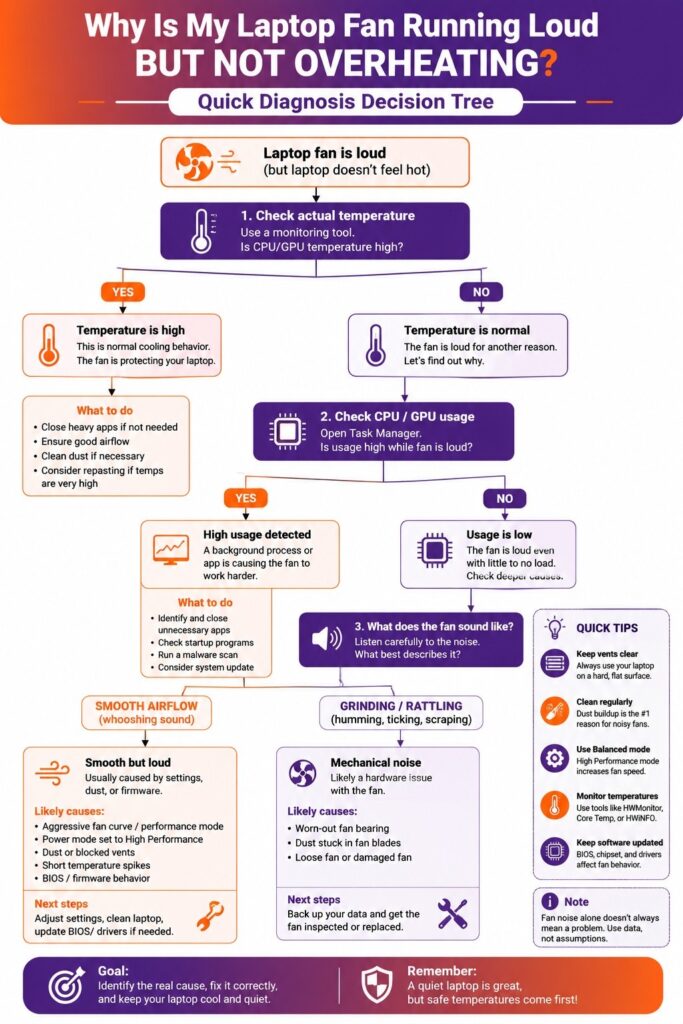
How to Diagnose a Laptop Fan Running Constantly But Not Overheating
Instead of trying random fixes, diagnose the problem in this order.
It can save you from opening the laptop when the real culprit is a background Windows task.
Step 1: Establish what “not overheating” actually means
Don’t rely only on touch.
Use temperature-monitoring software and observe CPU and GPU temperatures during:
- idle
- normal browsing
- the moment the fan becomes loud
- a normal workload
Watch both current and maximum temperatures.
If temperatures are genuinely high, you’re dealing with a thermal problem even if the laptop case doesn’t feel particularly hot.
If temperatures remain reasonable, continue.
Tool opportunity: Place your Slow Laptop Diagnosis Tool here with wording such as: “If fan noise comes with sluggish performance, use the Slow Laptop Diagnosis Tool to narrow down whether CPU, memory, storage, temperature, or software is involved.”
Step 2: Check CPU and GPU usage
Open Task Manager.
Look for persistent resource usage that matches the fan activity.
Here’s a useful diagnostic pattern:
| Temperature | CPU/GPU Activity | Fan | Most Likely Direction |
| Normal | High | Loud | Background workload |
| Normal | Low | Loud | Fan profile, firmware, dust or mechanical fan |
| High | High | Loud | Normal cooling response or thermal limitation |
| High | Low | Loud | Cooling/airflow/sensor issue needs investigation |
| Normal | Low | Grinding/rattling | Fan hardware |
This isn’t a definitive diagnostic table, but it helps narrow the search dramatically.
Step 3: Wait five minutes at true idle
Close your applications.
Don’t touch the laptop for around five minutes.
Then check:
- CPU usage
- GPU usage
- temperature
- fan noise
If the fan gradually becomes quiet, the earlier noise was probably workload-related.
If the laptop fan keeps running despite low resource usage and normal temperatures, move to power and fan settings.
Step 4: Switch to Balanced or Quiet mode
Change the Windows power mode and, if available, the manufacturer’s thermal profile.
If fan speed changes significantly, you have strong evidence that the noise is being driven by configuration rather than a failing cooling system.
Step 5: Inspect airflow
Place the laptop on a hard, flat surface.
Make sure nothing is covering the intake.
This sounds basic, but laptop intakes are often located underneath the chassis. A blanket, sofa cushion, bed, or even your legs can partially restrict them.
The laptop may compensate by increasing fan speed.
Also inspect the vents for visible dust.
Step 6: Identify the type of sound
Ask:
Is the fan moving lots of air, or is the fan itself making noise?
Smooth airflow points toward high RPM.
Grinding, rattling, scraping, or ticking points toward hardware.
That single distinction can eliminate several causes immediately.
Step 7: Think about what changed
If the problem appeared suddenly, check recent:
- Windows updates
- driver updates
- BIOS updates
- new applications
- manufacturer utility changes
- power-setting changes
Sudden symptoms deserve sudden causes higher on the suspect list.
Step 8: Run manufacturer hardware diagnostics
Many laptop manufacturers provide built-in or downloadable hardware diagnostics.
If available for your model, test:
- fan
- CPU
- memory
- battery
- system board
A diagnostic test isn’t perfect, but a reported fan error gives you far stronger evidence than trying another dozen Windows tweaks.
Use our free Laptop Performance Bottleneck Analyzer tool for additional guided diagnostic option.
How to Reduce Laptop Fan Noise Without Harming Cooling
Once you’ve identified the likely cause, you can work on reducing the noise.
The goal isn’t to stop the fan from running.
The goal is to remove unnecessary fan activity while preserving safe cooling.
Close unnecessary background applications
Check Task Manager and close applications you recognize and aren’t using.
Pay particular attention to:
- excessive browser tabs
- game launchers
- cloud clients
- video editors
- virtual machines
- background utilities
Don’t disable security or system services solely to make the computer quieter.
Reduce unnecessary startup programs
Open:
Task Manager → Startup apps
Review applications that automatically launch with Windows.
Disabling an unnecessary startup application doesn’t uninstall it. It simply prevents it from starting every time you log in.
Again, leave hardware, security, and system-related software alone unless you understand its purpose.
Use Balanced mode for everyday work
Maximum performance isn’t necessary for email, browsing, documents, or streaming.
Balanced mode allows the processor to adjust performance according to demand and can reduce unnecessary heat production and fan activity.
Switch back to a higher-performance profile when you actually need it.
Keep the laptop on a hard surface
Soft surfaces can restrict bottom intakes.
A desk or hard laptop stand usually provides better airflow.
You don’t necessarily need an expensive cooling pad. If the laptop’s own cooling system is healthy, simply giving its intake enough room can make a meaningful difference.
Clean dust when necessary
If the laptop is older or visibly dusty, cleaning the cooling system may allow it to maintain the same temperatures at lower fan speeds.
How frequently cleaning is necessary depends heavily on the environment.
A laptop used around pet hair, carpeting, smoke, or dusty rooms may need attention sooner than one used in a clean office.
Choose a quieter manufacturer profile
If your laptop provides a Quiet or Balanced thermal profile, use it when maximum performance isn’t important.
Monitor temperatures afterward.
A small increase in operating temperature can be an intentional consequence of a quieter fan profile and isn’t automatically dangerous.
Update drivers and firmware selectively
If the problem began after a software change—or your manufacturer documents a relevant fix—install updates from trustworthy sources.
For graphics drivers, use the laptop manufacturer or the GPU manufacturer’s official software/support pages as appropriate.
For BIOS and firmware, use the laptop manufacturer’s support page for your exact model.
Avoid random driver-download websites.
Don’t disable the fan
This deserves its own warning.
If you’re searching for how to reduce laptop fan noise, you may encounter tools or BIOS modifications promising manual control.
Be careful.
Forcing the fan off doesn’t solve the cause of the noise. It removes the system’s ability to respond normally to heat.
A quiet laptop with an artificially disabled cooling system is not an improvement.
When Should You Actually Worry About a Loud Laptop Fan?
A fan that gets louder during gaming, rendering, software installation, updates, or other heavy work is generally expected.
A fan that occasionally ramps up during normal use can also be normal.
The situation deserves more attention when the behavior changes significantly.
Get the laptop checked if you notice:
- grinding or scraping
- fan error messages
- fan repeatedly stopping and starting abnormally
- extremely high temperatures
- unexpected shutdowns
- thermal throttling
- burning smell
- reduced airflow from the exhaust
- sudden performance loss
- excessive chassis heat
- fan noise that suddenly appeared and never stops
If the laptop is also freezing, shutting down, or slowing dramatically, don’t treat the fan noise as an isolated acoustic problem.
It may be one symptom of a larger hardware or thermal issue.
What if the laptop is quiet but overheating?
That is arguably more concerning.
A properly functioning cooling system should respond when temperatures climb.
If your laptop becomes extremely hot but the fan doesn’t spin appropriately, shut down demanding workloads and investigate the cooling system.
Fan noise is annoying.
A fan that should be running but isn’t can be a hardware problem.
FAQ: Laptop Fan Noise Without Overheating
Why is my laptop fan so loud but not hot?
Your laptop fan can be loud even when the laptop isn’t hot because the cooling system responds to internal sensor readings, workload spikes, power settings, and predefined fan curves—not just the temperature you can feel on the case. Background CPU activity, dust, aggressive performance settings, or a worn fan can also cause excessive noise.
Why is my laptop fan running constantly but not overheating?
A laptop fan running constantly but not overheating often points to background CPU/GPU activity, a performance-oriented power profile, an aggressive fan curve, restricted airflow, or dust. Check Task Manager and actual component temperatures first. If both are low, investigate thermal settings, firmware, and the fan itself.
Is it bad if my laptop fan is always running?
Not necessarily. Some laptops are designed to keep their fans running at low speed during normal operation. It becomes more concerning if the fan suddenly runs much faster than before, makes grinding or rattling noises, or is accompanied by high temperatures, crashes, or poor performance.
Why is my laptop fan loud when CPU usage is low?
Low CPU usage doesn’t rule out every cause of fan noise. The GPU or another component may be generating heat, the fan profile may be aggressive, a recent temperature spike may have triggered the fan, or the fan may have a mechanical problem. Check temperature history, GPU activity, power mode, and the type of sound the fan is making.
How can I make my laptop fan quieter without overheating it?
Start by reducing unnecessary background processes, using Balanced or Quiet mode, keeping vents unobstructed, cleaning accumulated dust, and checking manufacturer thermal settings. Don’t disable the fan or force an unusually low fan speed, because doing so can interfere with the laptop’s cooling protection.
Conclusion: A Cool Laptop Can Still Have a Reason to Run Its Fan
A laptop fan running loud but not overheating isn’t automatically a sign that something is failing.
Sometimes the explanation is surprisingly ordinary: Windows is doing work in the background, the CPU briefly boosted, the laptop is in Performance mode, or the manufacturer simply programmed an aggressive fan curve.
Other cases deserve more attention.
Dust can force the fan to work harder to maintain the same temperature. Firmware or thermal-control problems can produce unusual fan behavior. And if what you’re hearing is grinding, rattling, scraping, or clicking rather than smooth airflow, the fan itself may be wearing out.
The most reliable approach is to diagnose the symptoms in order:
Check temperatures → check CPU/GPU usage → test power and fan profiles → inspect airflow → listen for mechanical noise → investigate firmware or hardware.
That tells you far more than replacing parts based on fan noise alone.
If your fan noise is accompanied by slow performance and you’re not sure what component is responsible, run the Laptop Performance Bottleneck Analyzer or Slow Laptop Diagnosis Tool next. If temperatures are genuinely high rather than simply noisy, move to the broader Why Is My Laptop Fan So Loud? guide and investigate the cooling system itself.
1 thought on “Laptop Fan Running Loud But Not Overheating? 9 Reasons Why”